App Store Screenshots Not Showing Correctly? Common Causes and Fixes

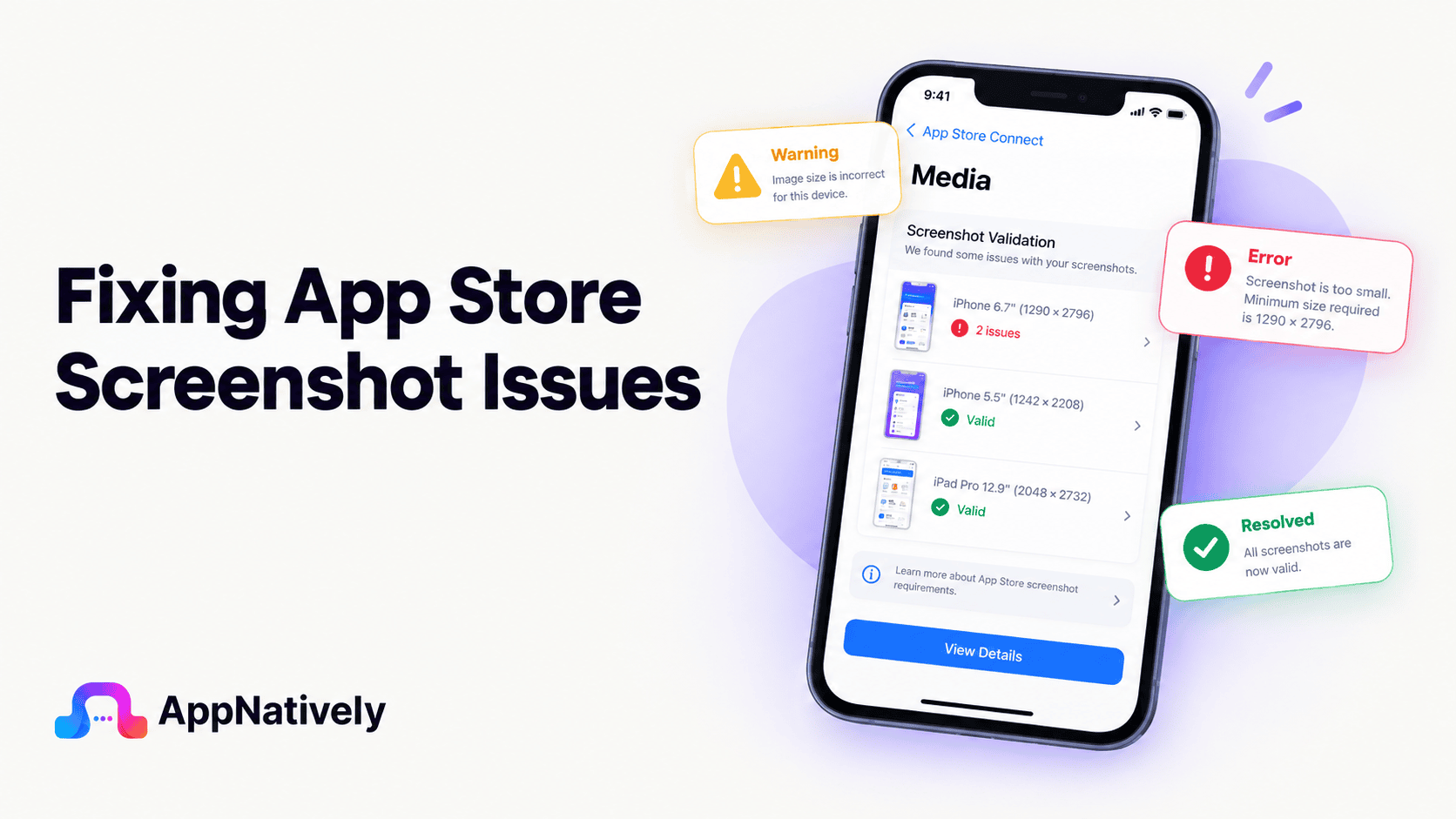
App Store screenshots are among the most important assets on your app listing page. Before users read your description, compare features, or check reviews, they often look at your screenshots first.
In many cases, screenshots are the deciding factor between an install and a missed opportunity.
That’s why it’s frustrating when App Store screenshots appear cropped, blurry, stretched, missing, outdated, or incorrectly displayed. These issues can make your app look unprofessional, reduce conversion rates, and negatively impact user trust.
Whether you’re publishing an app on the Apple App Store or Google Play, screenshot display issues can arise from incorrect dimensions, device compatibility problems, upload errors, caching issues, or platform-specific requirements.
In this guide, we’ll explore the most common reasons App Store screenshots don’t display correctly and the best ways to fix them.
Why App Store Screenshots Matter
Your screenshots are often the first visual interaction users have with your app.
They help potential users understand:
- What your app does
- How the interface looks
- Key features and benefits
- User experience expectations
- Overall product quality
Strong screenshots can:
- Increase app installs
- Improve conversion rates
- Build user trust
- Highlight unique features
- Support App Store Optimization (ASO)
Poorly displayed screenshots can have the opposite effect.
Common App Store Screenshot Display Issues
Screenshot-related problems can appear in several ways.
Screenshots appear cropped
Important UI elements may be cut off unexpectedly.
This often results in:
- Missing text
- Hidden buttons
- Truncated images
- Incomplete layouts
Screenshots appear blurry
Users may notice reduced image quality after upload.
Blurry screenshots can make an app appear outdated or poorly maintained.
Screenshots look stretched
Images may lose their original proportions and appear distorted.
This typically occurs when incorrect dimensions are uploaded.
Screenshots display the wrong version
Developers sometimes update screenshots but continue seeing older versions.
This is commonly caused by caching issues.
Screenshots fail to appear entirely
Uploaded screenshots may not display at all on the App Store listing.
This issue is usually related to upload validation problems or processing delays.
Device frames appear incorrect
Some screenshots may display improperly when paired with unsupported device sizes or outdated mockups.
Screenshot ordering issues
Images may appear in the wrong sequence after submission, affecting the overall presentation of the app listing.
Common Causes of App Store Screenshot Problems
Understanding the root cause makes troubleshooting much easier.
Incorrect screenshot dimensions
One of the most common causes is uploading screenshots that don’t meet platform requirements.
App stores expect screenshots to match specific device sizes and resolutions.
When dimensions are incorrect, screenshots may:
- Stretch
- Crop
- Fail validation
- Display improperly
Wrong aspect ratio
Aspect ratio mismatches frequently create visual issues.
Even if image quality is high, screenshots may appear distorted if they don’t match supported formats.
Uploading screenshots for the wrong device
Both Apple and Google organize screenshots based on device categories.
Examples include:
- iPhone
- iPad
- Android phone
- Android tablet
Uploading screenshots into the wrong category can cause display problems.
Image compression issues
Aggressive compression may reduce image quality significantly.
This often results in:
- Blurry text
- Pixelated interfaces
- Poor visual presentation
App Store processing delays
Screenshot updates aren’t always immediate.
After submission, platforms may require time to process and distribute new assets.
During this period, developers may still see older screenshots.
Browser caching
Caching frequently causes confusion.
Even after successfully uploading new screenshots, browsers may continue displaying previously cached versions.
Screenshot generation tools
Some screenshot creation tools export images using unsupported formats or dimensions.
These exports may pass initial review but display incorrectly on certain devices.
App version mismatches
Screenshots should accurately represent the version currently available to users.
When screenshots are updated without corresponding app changes, inconsistencies can occur.
How to Fix App Store Screenshots Not Showing Correctly
The following troubleshooting steps resolve most screenshot-related issues.
1. Verify screenshot dimensions
Start by checking the exact dimensions required by the platform.
Confirm that screenshots:
- Match supported resolutions
- Use approved formats
- Meet size requirements
- Maintain proper aspect ratios
Incorrect dimensions are the most common source of display issues.
2. Use original high-resolution images
Always upload high-quality source files.
Avoid:
- Excessive compression
- Repeated exporting
- Low-resolution captures
- Scaled-up images
Starting with high-quality assets improves final display quality.
3. Check device-specific screenshot categories
Ensure screenshots are uploaded under the correct device type.
For example:
- iPhone screenshots should not be uploaded as iPad screenshots
- Tablet screenshots should not replace phone screenshots
Device-specific categories are critical for proper display.
4. Clear browser cache
If screenshots appear outdated, clear your browser cache and reload the App Store dashboard.
You can also:
- Open the page in incognito mode
- Use a different browser
- Check from another device
This often reveals whether caching is the issue.
5. Wait for processing completion
New screenshots may take time to propagate across App Store systems.
Before assuming an upload failed:
- Verify upload success
- Confirm processing status
- Wait for synchronization to complete
Processing delays are common after updates.
6. Re-export screenshots correctly
If images appear stretched or blurry, recreate them using the proper specifications.
Focus on:
- Correct dimensions
- Proper resolution
- Supported file formats
- Accurate aspect ratios
7. Review App Store validation messages
Both Apple and Google provide feedback during submission.
Validation errors often indicate:
- Incorrect image sizes
- Unsupported formats
- Missing screenshots
- Upload failures
Reviewing these messages can quickly identify the problem.
Apple App Store Screenshot Requirements
Apple maintains strict screenshot requirements.
Key considerations include:
Device-specific screenshots
Apple supports multiple device categories, including:
- iPhone
- iPad
- Apple Watch
- Apple TV
Each category has its own screenshot specifications.
Accurate representation
Screenshots must accurately reflect the current app experience.
Misleading screenshots can result in review delays or rejection.
Supported file formats
Apple generally accepts standard image formats such as PNG and JPEG.
Using unsupported formats may cause upload failures.
Safe areas and screen sizes
Designers should account for varying device sizes to ensure content remains visible and properly aligned.
Google Play Screenshot Requirements
Google Play also enforces screenshot standards.
i. Minimum screenshot requirements
Apps must provide screenshots that demonstrate core functionality and user experience.
ii. Screenshot quality expectations
Google recommends high-quality screenshots that clearly showcase app features.
Low-quality visuals can negatively impact conversions.
iii. Device-specific assets
Developers may upload screenshots for:
- Phones
- Tablets
- Chromebooks
- Wear OS devices
Using the correct categories improves presentation.
iv. Graphic consistency
Consistent branding, typography, and visual messaging create stronger app listings.
Free App Store Screenshot Designer
Create professional App Store and Google Play screenshots in minutes without expensive design tools or complicated software.
Upload your app screenshots, apply polished store-ready layouts, customize colors and branding, and export high-quality assets directly from your browser.
Why Use AppNatively’s Free Screenshot Designer?
- Upload your screenshots instantly
- Apply beautiful App Store and Google Play layouts
- Customize text, colors, and branding
- Generate professional marketing visuals
- Export store-ready PNG files
- No design experience required
- No software installation needed
- Completely browser-based
Designed for Better App Store Conversions
Your screenshots are often the first thing potential users notice. A professionally designed screenshot set can improve your app’s presentation, increase trust, and help drive more installs.
Whether you’re launching a new app, updating your store listing, or improving your App Store Optimization (ASO) strategy, AppNatively’s Free Screenshot Designer helps you create stunning visuals quickly and effortlessly.
Create Store-Ready Screenshots for Free
Skip complicated design tools and create polished App Store assets in minutes.
Try AppNatively’s Free App Store Screenshot Designer today and turn ordinary screenshots into high-converting store graphics.
Frequently Asked Questions
Why are my App Store screenshots blurry?
Blurry screenshots are often caused by low-resolution source files, excessive image compression, or incorrect export settings.
Why are my screenshots cropped after upload?
Cropping usually occurs because the uploaded image dimensions don’t match the platform’s required specifications.
How long does it take for screenshot updates to appear?
Processing times vary, but updates can sometimes take several hours before appearing across all App Store regions.
Why am I still seeing old screenshots?
Browser caching, App Store caching, or incomplete processing may cause older screenshots to remain visible temporarily.
Can incorrect screenshots affect app installs?
Yes. Poorly displayed or low-quality screenshots can reduce user trust and negatively impact conversion rates.
Final Thoughts
When App Store screenshots are not showing correctly, the issue often stems from incorrect dimensions, device mismatches, image quality problems, caching behavior, or platform-specific requirements.
Because screenshots are one of the most influential elements of an app listing, ensuring they display properly should be a top priority for every developer and app publisher.
By following platform guidelines, using high-quality assets, testing across device categories, and reviewing uploads carefully before submission, you can avoid common screenshot issues and create a stronger first impression for potential users.
Related posts