
App Permissions Not Working on Android: Causes and Fixes

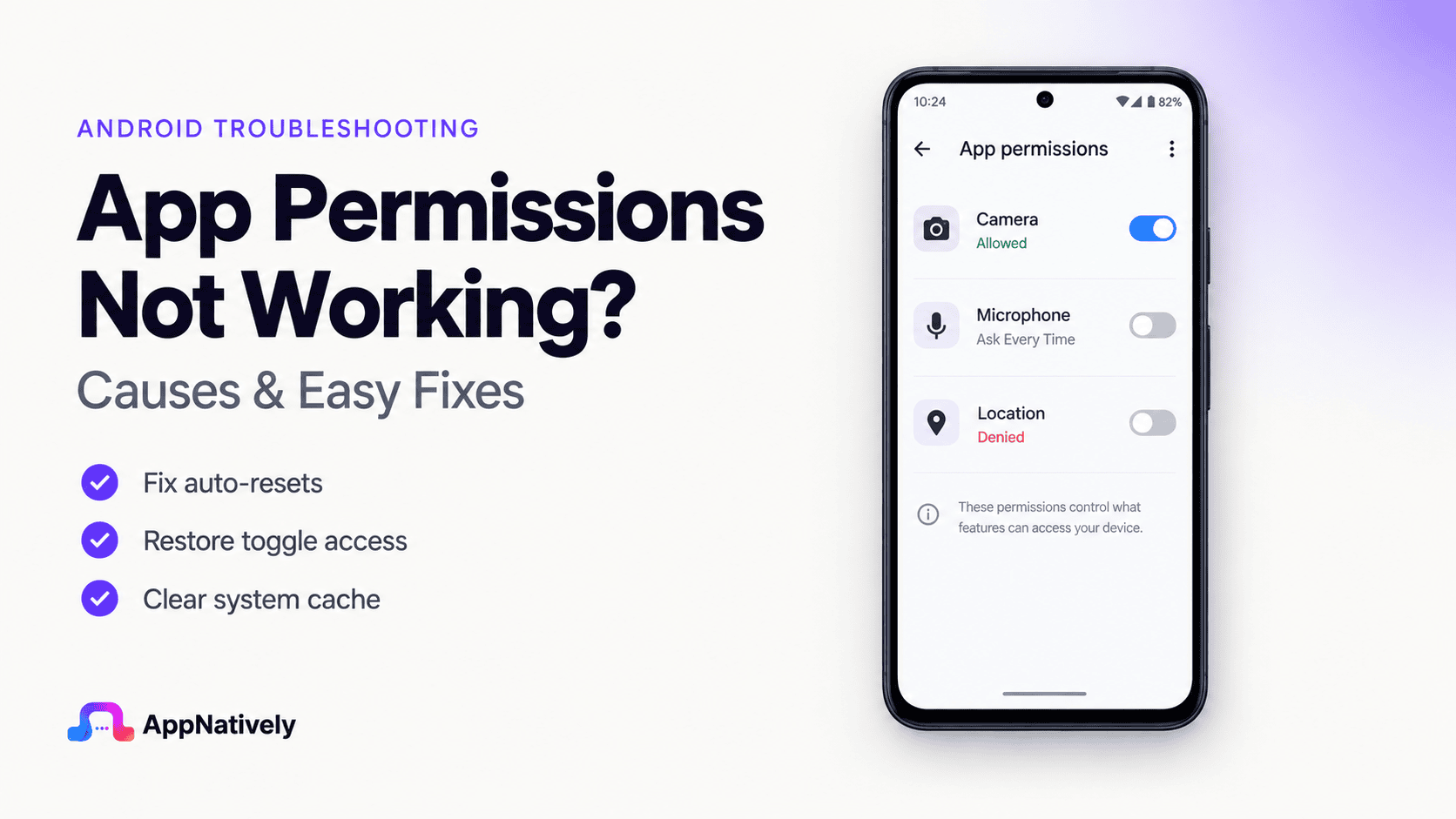
Android permissions play a critical role in how mobile applications interact with device features. Whether an app needs access to the camera, microphone, location, contacts, storage, or notifications, permissions act as the gateway between the app and the user’s device.
When permissions stop working correctly, app functionality can break unexpectedly. Users may be unable to upload photos, access their location, scan QR codes, make video calls, receive notifications, or use other essential features.
For businesses, permission-related issues often result in poor user experiences, negative reviews, increased support requests, and reduced engagement.
Fortunately, most Android permission problems can be diagnosed and fixed with the right troubleshooting approach.
In this guide, we’ll explore the most common reasons Android app permissions stop working and the best solutions for restoring functionality.
Why Android App Permissions Matter
Android permissions protect user privacy while allowing apps to access device capabilities when needed.
Without the proper permissions, many app features simply cannot function.
Common permissions include:
- Camera access
- Microphone access
- Location access
- Storage access
- Contacts access
- Notification permissions
- Bluetooth permissions
- Calendar permissions
These permissions help apps deliver personalized and feature-rich experiences while maintaining user control over sensitive information.
When permissions fail, key app features often stop working immediately.
Common Permission-Related Problems on Android
Permission issues can appear in several different ways.
i. Camera permission not working
Users may encounter:
- Black camera screens
- Camera launch failures
- QR scanner issues
- Image capture errors
Many apps rely heavily on camera functionality for onboarding and user engagement.
ii. Location permission not working
Location-related issues often prevent:
- GPS tracking
- Delivery updates
- Navigation features
- Nearby search functionality
Without location access, many apps lose core functionality.
iii. Microphone permission not working
Users may be unable to:
- Record audio
- Send voice messages
- Join voice chats
- Participate in video calls
iv. Storage permission failures
Storage permission issues commonly affect:
- File uploads
- Downloads
- Image selection
- Document access
v. Notification permissions not working
Users may stop receiving:
- Push notifications
- Order updates
- Promotional messages
- Account alerts
This can significantly reduce user engagement.
vi. Contacts permission issues
Apps that rely on contact synchronization may fail to:
- Import contacts
- Invite friends
- Share content
- Access address books
Common Causes of Android Permission Problems
Several factors can prevent permissions from functioning correctly.
Permission was denied by the user
The most common cause is simple.
Users may accidentally deny a permission request during installation or app usage.
Once denied, certain features stop working until permission is granted manually.
Android system updates
Android updates frequently introduce changes to permission handling.
New versions often include:
- Enhanced privacy controls
- Permission restrictions
- Background access limitations
- Security improvements
Apps that aren’t updated accordingly may experience permission-related issues.
App updates introduced a bug
Software updates occasionally create permission conflicts.
Examples include:
- Incorrect permission requests
- Broken permission flows
- Missing runtime permission checks
- Compatibility issues
If the problem began after an app update, a software bug may be responsible.
Permissions were revoked automatically
Modern Android versions can automatically revoke permissions from unused apps.
This feature helps improve privacy but may surprise users when they return to an app after a long period of inactivity.
Background permission restrictions
Android places stricter limits on background access than previous versions.
Affected permissions may include:
- Location tracking
- Background synchronization
- Bluetooth access
- Activity monitoring
Apps that rely on background functionality often require additional configuration.
Manufacturer-specific restrictions
Android devices vary across manufacturers.
Brands may implement their own battery management and privacy controls.
Examples include:
- Samsung
- Xiaomi
- Oppo
- Vivo
- Huawei
These customizations sometimes interfere with permission behavior.
Corrupted app data
Corrupted settings or app data can create permission inconsistencies.
Users may see permissions marked as granted while features continue failing.
Incomplete permission implementation
Developers occasionally overlook permission handling during development.
Common mistakes include:
- Missing permission requests
- Improper error handling
- Incorrect Android API usage
- Failure to support newer Android versions
How to Fix App Permissions Not Working on Android
The following troubleshooting steps resolve most Android permission issues.
1. Check app permissions manually
Start by verifying the app’s permission settings.
Navigate to:
Settings → Apps → App Name → Permissions
Review all required permissions and ensure they are enabled.
This is often the quickest solution.
2. Restart the app
After granting permissions, fully close and reopen the application.
Some apps only recognize permission changes after restarting.
3. Restart the device
A simple device restart can resolve temporary system-level permission conflicts.
Restarting refreshes:
- System services
- Security components
- Permission states
- Background processes
4. Update the app
Developers frequently release fixes for permission-related issues.
Check the Google Play Store for available updates.
New versions often address:
- Android compatibility
- Security changes
- Permission handling bugs
5. Update Android
Running an outdated Android version may cause compatibility problems.
Installing the latest system updates helps ensure proper permission management.
6. Reset app permissions
Android allows users to reset app preferences and permissions.
This can resolve situations where permission settings become inconsistent.
7. Clear app cache
Corrupted cache files sometimes interfere with permission-related features.
Clearing cache may restore normal functionality without affecting account data.
8. Reinstall the app
If problems persist, reinstalling the application can remove corrupted settings and restore proper permission behavior.
A fresh installation often resolves persistent issues.
Android Version-Specific Permission Challenges
Android permissions have evolved significantly over the years.
Android 10 permission changes
Android 10 introduced stronger location privacy controls.
Users gained more control over:
- Foreground location access
- Background location access
- Permission timing
Apps that weren’t updated often experienced location-related issues.
Android 11 automatic permission reset
Android 11 introduced automatic permission revocation for unused apps.
This feature can cause previously working apps to lose access unexpectedly.
Android 12 privacy enhancements
Android 12 added privacy indicators and more granular controls for:
- Camera access
- Microphone access
- Location permissions
These changes increased transparency but also introduced new permission requirements.
Android 13 notification permissions
Android 13 made notification access an explicit permission.
Apps must now request notification permission before sending alerts.
This change created a new category of permission-related issues.
Android 14 permission refinements
Android 14 continues Google’s focus on privacy and permission control.
Developers must remain proactive in adapting to evolving requirements.
How AppNatively Helps Build Reliable Android Apps
Permission handling is one of the most important aspects of Android app development.
AppNatively helps businesses create native Android and iOS applications that align with modern platform requirements, including evolving permission systems and privacy standards.
Benefits include:
- Native Android development
- Better platform compatibility
- Improved permission management
- Enhanced app stability
- Faster performance
- Easier long-term maintenance
By leveraging native technologies, businesses can reduce permission-related issues while providing a smoother user experience.
Frequently Asked Questions
Why is my Android app permission not working?
The issue may be caused by denied permissions, Android updates, software bugs, automatic permission revocation, or device-specific restrictions.
Why does my app still fail after granting permission?
The app may require a restart, cache clearing, software update, or bug fix to recognize the permission correctly.
Can Android updates break permissions?
Yes. Major Android releases often introduce new privacy controls and permission requirements that affect existing apps.
Why am I not receiving notifications even though they are enabled?
Android 13 and newer versions require explicit notification permission. Additionally, battery optimization settings may interfere with notifications.
Can manufacturers affect Android permissions?
Yes. Device manufacturers often add custom battery management and privacy features that may restrict app permissions differently.
Final Thoughts
When app permissions are not working on Android, the problem can affect everything from camera functionality and location services to notifications and file access.
Fortunately, most permission issues stem from a limited number of causes, including denied access, Android updates, software bugs, automatic permission revocation, and device-specific restrictions.
By following a structured troubleshooting process and understanding how Android’s permission system works, users and developers can quickly identify the root cause and restore app functionality.
As Android continues to evolve with stronger privacy protections, proper permission management remains essential for delivering reliable, user-friendly mobile experiences.
Related posts
AppNatively vs MobiLoud vs AppMySite: Which Mobile App Builder Is Best in 2026?

AppNatively vs Shopney vs Tapcart: Which Shopify App Builder Is Best in 2026?

AppNatively vs AppMySite vs AppPresser: Which One Delivers the Best Mobile App Experience?