App Suddenly Stopped Working: What to Check First

Mobile apps have become essential for communication, shopping, banking, entertainment, productivity, and business operations. Most users expect their favorite apps to work flawlessly every time they open them.
That’s why it’s especially frustrating when an app that worked perfectly yesterday suddenly stops working today.
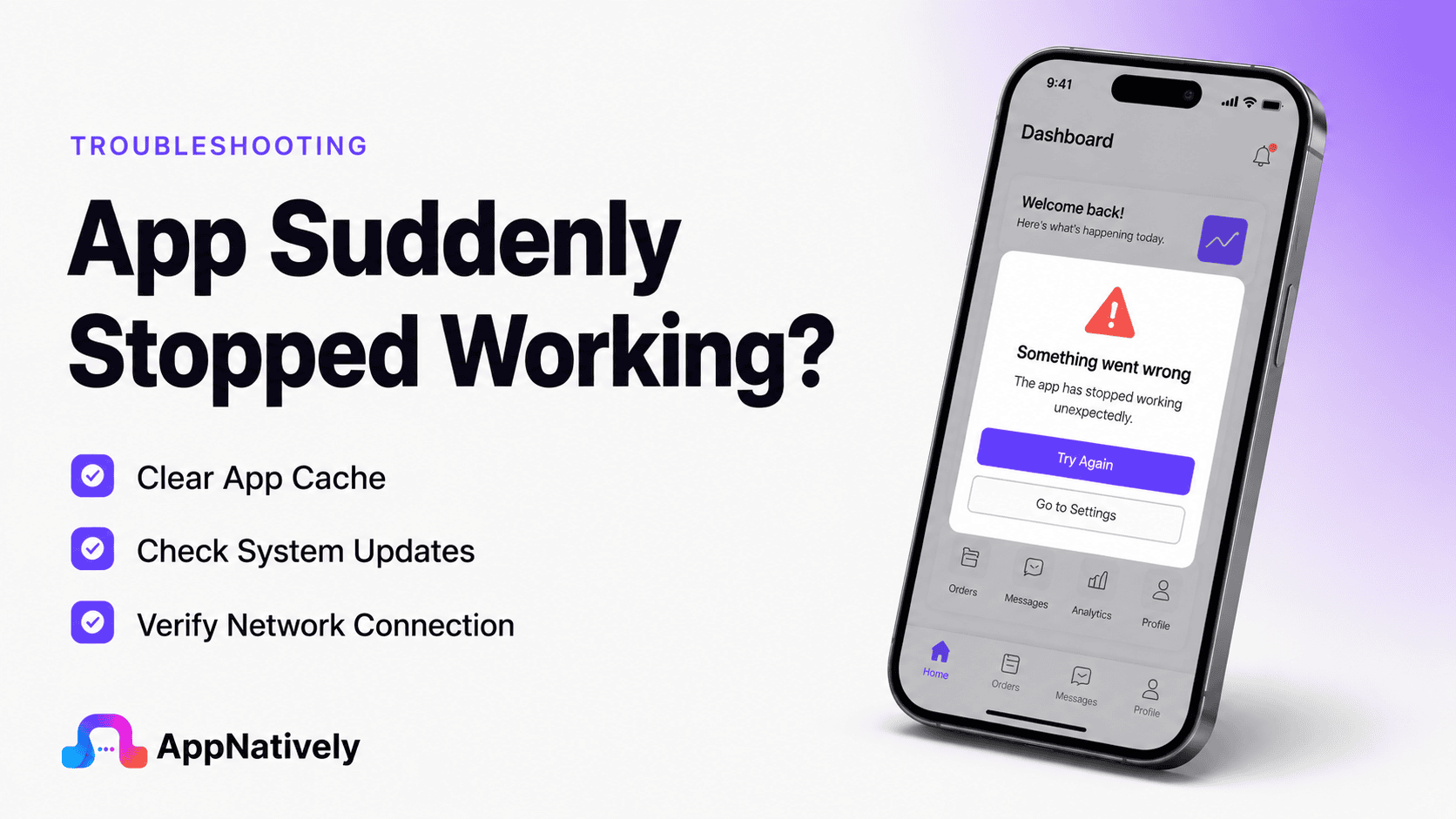
The app may crash immediately after launch, freeze on a loading screen, display a blank screen, refuse to connect to the internet, or stop responding entirely. In some cases, the issue affects only one user. In others, thousands of users may experience the same problem simultaneously.
Whether you’re a user trying to restore functionality or a developer investigating the root cause, understanding what to check first can save significant time and frustration.
In this guide, we’ll cover the most common reasons apps suddenly stop working, the warning signs to watch for, and a step-by-step troubleshooting process to identify and fix the issue quickly.
Why Apps Suddenly Stop Working
When an app stops working unexpectedly, many users assume the app itself is broken.
In reality, the issue may originate from multiple sources, including:
- Software updates
- Internet connectivity problems
- Server outages
- Device storage limitations
- Corrupted app data
- Operating system changes
- Account authentication issues
- Bugs introduced in recent releases
The challenge is determining which factor is responsible.
That’s why a systematic troubleshooting approach is critical.
What to Check First When an App Stops Working
Before diving into advanced troubleshooting, start with the most common causes.
These checks solve a surprisingly large percentage of app-related issues.
i. Check your internet connection
Many apps rely on cloud services and remote servers.
If your connection becomes unstable, the app may appear broken even though the software itself is functioning correctly.
Verify:
- Wi-Fi connectivity
- Mobile data availability
- Internet speed
- Network stability
A quick test is to open a website or another online app.
If other internet services aren’t working either, the problem is likely network-related.
ii. Restart the app
Temporary software glitches can sometimes cause an application to stop responding.
Force-closing and reopening the app refreshes its active processes and clears minor issues.
This simple step often resolves:
- Frozen screens
- Loading loops
- UI glitches
- Temporary crashes
iii. Restart your device
Many users underestimate how effective a restart can be.
Rebooting your phone:
- Clears temporary memory
- Refreshes system services
- Resets network connections
- Removes temporary software conflicts
If an app suddenly stopped working, a device restart should always be one of the first troubleshooting steps.
iv. Check if the app is down
Sometimes the problem isn’t on your device at all.
Many apps rely on cloud infrastructure that can experience outages.
Examples include:
- Social media platforms
- Banking apps
- Messaging services
- Streaming applications
- Ecommerce apps
If multiple users report problems simultaneously, a server outage may be responsible.
v. Verify app permissions
Apps often require permissions to function properly.
Recent updates or operating system changes may revoke permissions automatically.
Check access to:
- Camera
- Storage
- Microphone
- Location
- Notifications
- Contacts
Missing permissions can cause features to stop working unexpectedly.
Common Causes of Apps Suddenly Stopping Working
Understanding the most frequent causes can help identify issues faster.
Recent app update introduced a bug
Not every software update improves stability.
Occasionally, developers release updates that introduce:
- Crashes
- Compatibility problems
- Performance issues
- Authentication failures
If the problem started immediately after updating the app, the latest release may be the cause.
Operating system update conflicts
Operating system updates often modify system APIs, security policies, and permissions.
Apps that haven’t been optimized for the latest Android or iOS version may experience:
- Startup failures
- Broken features
- Notification issues
- Compatibility problems
This is particularly common immediately after major OS releases.
Corrupted app cache
Apps store temporary files to improve performance.
Over time, cache files can become corrupted.
When that happens, users may experience:
- Crashes
- Missing content
- Login issues
- Loading failures
Corrupted cache data is one of the most common causes of sudden app problems.
Insufficient storage space
Apps need storage for:
- Temporary files
- Downloads
- Updates
- Cached content
When a device runs out of available storage, apps may stop functioning properly.
Warning signs include:
- Slow performance
- Failed updates
- Frequent crashes
- App freezing
Account authentication failures
Many apps depend on active user sessions.
Authentication problems can occur due to:
- Expired login tokens
- Password changes
- Security updates
- Server-side account issues
In these cases, users may need to sign out and log back in.
Third-party service failures
Modern applications often rely on external services.
Examples include:
- Payment processors
- Analytics tools
- Authentication platforms
- Cloud storage providers
- Push notification systems
A failure in one dependency can affect the entire app.
Memory leaks and resource exhaustion
Apps that consume excessive memory may become unstable over time.
Common symptoms include:
- Increasing lag
- Random crashes
- Device overheating
- Performance degradation
Resource-related issues often worsen the longer the app remains open.
How to Troubleshoot an App That Suddenly Stopped Working
A structured troubleshooting process helps isolate the root cause efficiently.
Step 1: Determine whether the issue affects only one app
Check whether other apps work normally.
If multiple apps are experiencing problems, the issue may be related to:
- Internet connectivity
- Operating system issues
- Device storage
- Hardware failures
If only one app is affected, focus on app-specific troubleshooting.
Step 2: Check for updates
Open the App Store or Google Play Store and look for available updates.
Developers frequently release hotfixes to address:
- Crash reports
- Compatibility issues
- Security problems
- Performance bugs
Running the latest version often resolves newly discovered issues.
Step 3: Clear cached data
For Android users, clearing cache can remove corrupted temporary files without affecting account information.
This is especially useful when apps:
- Freeze unexpectedly
- Display outdated content
- Fail to load properly
Step 4: Reinstall the app
If problems persist, uninstalling and reinstalling the app may help.
Reinstallation:
- Removes corrupted files
- Resets local configurations
- Downloads fresh resources
- Restores default settings
Always verify whether important data is backed up before uninstalling.
Step 5: Check device storage
Low storage can interfere with app functionality.
Try removing:
- Unused apps
- Large videos
- Duplicate photos
- Downloaded files
Maintaining free storage improves overall stability.
Step 6: Review recent changes
Ask yourself:
- Did the issue begin after an update?
- Was new software installed?
- Were system settings changed?
- Did network configurations change?
Identifying recent changes often reveals the cause.
Android-Specific Checks
Android devices include several settings that can affect app functionality.
Review battery optimization settings
Aggressive battery-saving features may prevent apps from functioning correctly in the background.
Affected features may include:
- Notifications
- Synchronization
- Location tracking
- Messaging services
Check app permissions
Android permissions can change during updates.
Verify that the application still has access to required resources.
Clear app cache and data
Android provides direct cache management tools that often resolve unexpected app behavior.
For severe issues, clearing app data may help, though it typically removes local settings.
iPhone-Specific Checks
iOS users should consider several additional troubleshooting steps.
Verify Background App Refresh
Some apps depend on background activity to maintain functionality.
If Background App Refresh is disabled, certain features may stop working properly.
Check Screen Time restrictions
Restrictions can interfere with app functionality unexpectedly.
Review:
- Content restrictions
- App limits
- Privacy settings
Update iOS
Apple frequently releases updates that improve stability and compatibility.
Running an outdated version may contribute to app issues.
Developer Troubleshooting Checklist
When users report that an app suddenly stopped working, developers should investigate systematically.
Review crash analytics
Crash reporting tools can quickly reveal:
- Error frequency
- Device-specific issues
- Affected operating systems
- Common failure points
Check backend services
Verify the health of:
- APIs
- Databases
- Authentication systems
- Cloud infrastructure
Backend failures often appear as app failures to users.
Analyze recent deployments
Review recent releases carefully.
Many app failures originate from:
- New features
- Configuration changes
- Dependency updates
- Infrastructure modifications
Monitor performance metrics
Watch for unusual changes in:
- Crash rates
- Memory usage
- CPU consumption
- Network failures
Performance analytics often expose hidden issues.
Test across devices
Some problems affect only specific hardware configurations.
Testing across multiple devices helps identify compatibility-related failures.
How AppNatively Helps Build More Reliable Mobile Apps
Many app failures stem from poor architecture, performance bottlenecks, or platform-specific compatibility issues.
AppNatively helps businesses create native mobile applications designed for performance, stability, and long-term scalability.

Native apps generally provide:
- Faster performance
- Better platform integration
- Improved reliability
- Enhanced user experiences
- Stronger compatibility across devices
- Easier maintenance and updates
By building on a native-first foundation, businesses can reduce many of the common issues that lead to app failures and poor user experiences.
Frequently Asked Questions
Why did my app suddenly stop working without any warning?
Common causes include software updates, server outages, corrupted cache files, compatibility issues, authentication failures, or network problems.
Can a phone update cause apps to stop working?
Yes. Operating system updates can introduce compatibility issues if apps haven’t been optimized for the latest version.
Should I reinstall an app if it stops working?
Reinstalling is often an effective solution when other troubleshooting methods fail. It removes corrupted files and restores a clean installation.
Can low storage cause app crashes?
Absolutely. Insufficient storage can prevent apps from accessing resources they need to function properly.
How do I know if the problem is the app’s server?
If many users are experiencing the same issue simultaneously and your device functions normally otherwise, a server outage is likely responsible.
Final Thoughts
When an app suddenly stops working, it’s tempting to assume the application is completely broken. However, the root cause is often much simpler than it appears.
Network issues, recent updates, corrupted cache files, storage limitations, authentication failures, and temporary server outages are among the most common reasons apps stop functioning unexpectedly.
By following a structured troubleshooting process and checking the most likely causes first, users can often restore functionality within minutes.
For developers, proactive monitoring, comprehensive testing, and strong application architecture remain the best defenses against unexpected failures.