

App Update Failed: Common Causes and Fixes (Complete Troubleshooting Guide)

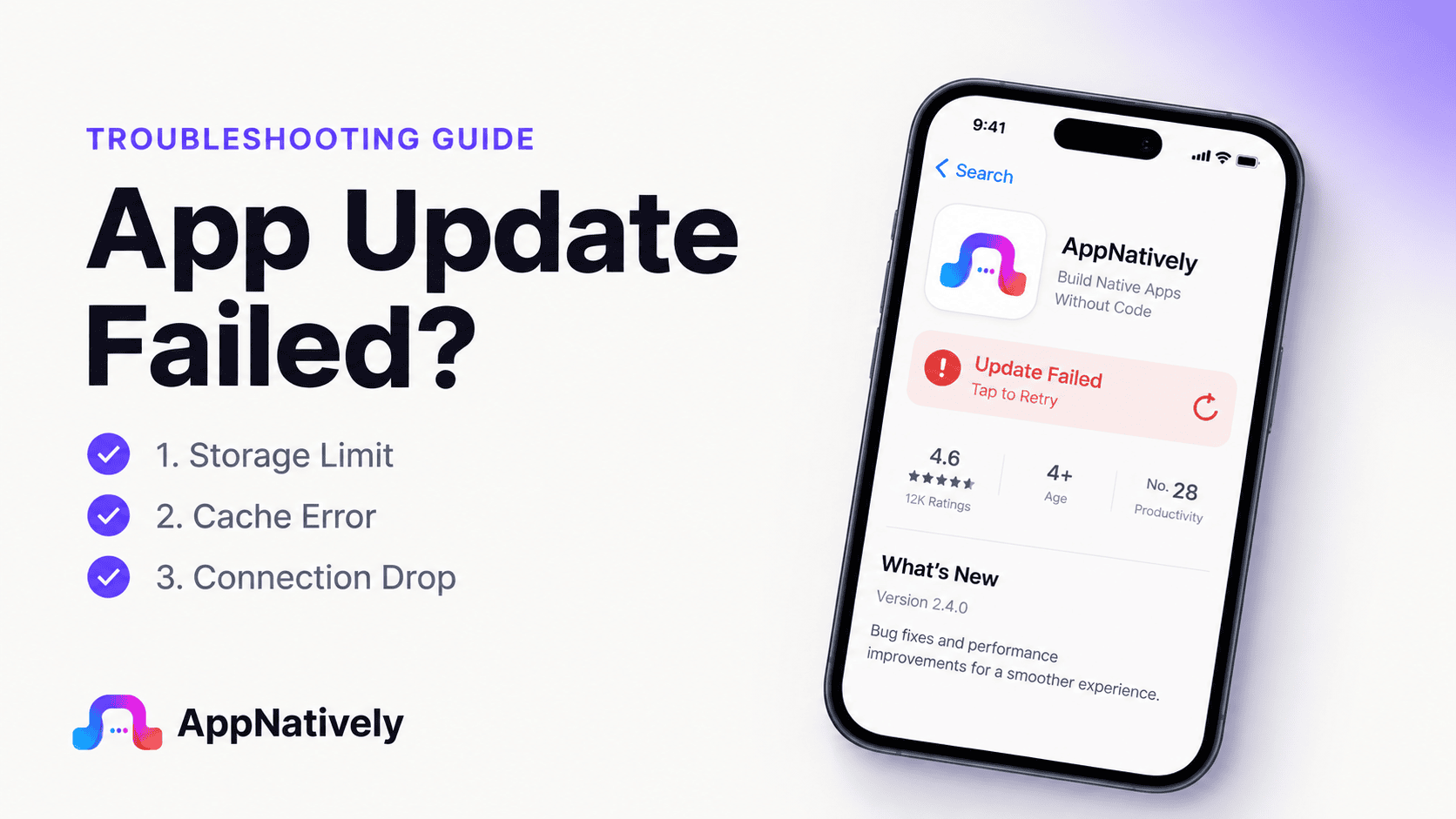
Keeping your mobile apps updated is essential for enjoying the latest features, improved performance, bug fixes, and enhanced security. However, few things are more frustrating than tapping the Update button only to see the process fail with an error or get stuck indefinitely.
Whether you’re updating an app from the Google Play Store, Apple App Store, or a manually installed APK, update failures can happen for several reasons. The good news is that most of these issues can be resolved without advanced technical knowledge.
In this guide, we’ll explain the most common causes of app update failures and provide practical, step-by-step solutions to get your apps updating again.
Why App Updates Matter
Mobile app updates do far more than introduce new features.
They often include:
- Security patches
- Performance improvements
- Bug fixes
- Compatibility updates
- User experience enhancements
- Stability improvements
Without regular updates, users may experience increasing problems as operating systems evolve.
That’s why update reliability is critical for both users and app owners.
Common App Update Failure Symptoms
Update issues can appear in different ways depending on the device and platform.
Update download never starts
Users tap the update button, but nothing happens.
The update remains stuck in a pending state indefinitely.
Update download stops midway
The update begins downloading but suddenly pauses or fails before completion.
Installation fails after download
The update downloads successfully but cannot be installed on the device.
Endless update loop
The app repeatedly requests an update even after the latest version has already been installed.
App crashes after updating
The update completes successfully, but the app becomes unstable or unusable afterward.
Error messages during update
Users may encounter messages such as:
- Update failed
- Installation unsuccessful
- Download error
- Package installation failed
- Unable to complete update
These messages often provide little information about the root cause.
Common Causes of App Update Failures
Several technical factors can prevent app updates from completing successfully.
i. Insufficient device storage
Lack of available storage is one of the most common reasons updates fail.
Even small updates often require additional temporary space during installation.
When storage is nearly full, the update process may stop unexpectedly.
Common warning signs include:
- Slow device performance
- Storage alerts
- Frequent installation failures
ii. Poor internet connection
App updates rely on stable internet access.
Problems may occur when users experience:
- Weak Wi-Fi signals
- Mobile data interruptions
- Network instability
- Slow download speeds
Even brief interruptions can cause update failures.
iii. Corrupted app cache
App stores and installed applications frequently use cached files.
If cached data becomes corrupted, update requests may fail.
This can affect:
- Download processes
- Version checks
- Installation workflows
iv. App store issues
Sometimes the problem isn’t with the app itself.
Google Play Store or Apple’s App Store may experience:
- Temporary outages
- Synchronization issues
- Processing delays
- Service disruptions
These platform-related issues can affect multiple apps simultaneously.
v. Operating system incompatibility
New app versions often require newer operating system versions.
If a device runs outdated software, update installation may fail.
Compatibility issues become increasingly common as devices age.
vi. Corrupted app installation
Existing installation files may become damaged over time.
When this occurs, the update process may be unable to overwrite or replace required components.
vii. Device security restrictions
Enterprise-managed devices, parental controls, or security software can sometimes block updates.
Restrictions may prevent:
- Downloads
- Installations
- Background updates
viii. App package conflicts
Android devices occasionally experience package conflicts when:
- App signatures change
- Installation files become corrupted
- Previous versions were modified incorrectly
These conflicts can prevent updates from completing.
How to Fix App Update Failed Errors
A structured troubleshooting process helps resolve most update issues.
1. Check available storage space
Start by reviewing available device storage.
Remove unnecessary:
- Apps
- Photos
- Videos
- Downloads
- Cached files
Freeing storage often resolves update problems immediately.
2. Verify internet connectivity
Test your network connection before attempting another update.
Try:
- Switching Wi-Fi networks
- Using mobile data
- Restarting your router
- Running a speed test
Stable connectivity is essential for successful updates.
3. Restart the device
A simple restart can resolve temporary update-related issues.
Restarting refreshes:
- System processes
- App store services
- Network connections
- Memory usage
Many update failures disappear after a reboot.
4. Update the operating system
Check whether a system update is available.
Installing the latest OS version improves compatibility with newer app releases.
This is especially important for older devices.
5. Clear app store cache
If you’re using Android, clearing Google Play Store cache often helps.
Cached data occasionally interferes with update downloads and installations.
Refreshing the cache forces the app store to rebuild essential files.
6. Reinstall the application
If updates continue failing, uninstalling and reinstalling the app may resolve corrupted installation issues.
Before uninstalling, ensure important user data is backed up when applicable.
7. Check app store status
Occasionally, update failures stem from platform-wide outages.
Verify whether:
- Google Play services are functioning normally
- Apple App Store services are operational
Waiting for platform issues to be resolved may be the only required solution.
Android Update Troubleshooting
Android devices present unique update challenges due to device diversity.
Google Play Store problems
Update failures may originate from:
- Play Store cache corruption
- Account synchronization issues
- Google Play Services errors
Refreshing Play Store data often helps.
Manufacturer-specific restrictions
Some manufacturers implement aggressive battery optimization systems.
Examples include:
- Samsung
- Xiaomi
- Oppo
- Vivo
- Huawei
These settings may interfere with update downloads.
APK installation conflicts
Users who previously installed apps outside Google Play may encounter package signature conflicts during updates.
These conflicts often require a clean reinstall.
iPhone Update Troubleshooting
Although Apple’s ecosystem is more controlled, update failures can still occur.
App Store account issues
Verify that:
- Apple ID authentication is active
- Payment information is valid
- App Store access is functioning correctly
Account-related problems occasionally block updates.
iOS compatibility limitations
Older iPhones may not support the latest app versions.
Developers often increase minimum iOS requirements over time.
Storage limitations
iOS devices require temporary installation space during updates.
Low storage can prevent successful installations.
Developer-Side Causes of Failed Updates
Sometimes update failures originate from the app publisher rather than the user.
Incorrect release configurations
Developers may accidentally publish builds with:
- Version conflicts
- Missing assets
- Invalid settings
- Deployment errors
Backend service issues
Apps that depend on backend validation may experience update failures if servers are unavailable.
Incomplete testing
Updates that aren’t tested thoroughly may introduce:
- Installation problems
- Compatibility issues
- Device-specific failures
App store review issues
Occasionally, app store processing delays create inconsistencies between available versions and update availability.
How AppNatively Helps Maintain Reliable Mobile Apps
Reliable updates are essential for long-term app success.
AppNatively helps businesses build and manage native mobile applications with a focus on performance, stability, and maintainability.
By using a native app approach, businesses can benefit from:
- Better platform compatibility
- Faster app performance
- Improved update management
- Native Android and iOS experiences
- Easier long-term maintenance
- Enhanced user satisfaction
A well-maintained app infrastructure reduces the likelihood of update-related disruptions and improves the overall user experience.
Frequently Asked Questions
Why does my app update keep failing?
Common causes include insufficient storage, poor internet connectivity, operating system incompatibility, corrupted cache data, or app store issues.
Why does an update download but not install?
Installation failures often occur due to storage limitations, compatibility problems, corrupted app files, or package conflicts.
Can an outdated operating system prevent updates?
Yes. Many app updates require newer Android or iOS versions to function properly.
Should I uninstall the app if updates fail?
Reinstalling can help resolve corrupted installation issues, but important data should be backed up first when applicable.
How can developers reduce update failures?
Comprehensive testing, release monitoring, compatibility validation, and optimized deployment processes are key to minimizing update issues.
Final Thoughts
When an app update fails, the problem can originate from the device, the network, the operating system, the app store, or even the app itself.
Fortunately, most update failures can be resolved by checking storage availability, verifying internet connectivity, updating system software, clearing cache files, and ensuring platform compatibility.
For app owners, maintaining reliable updates is just as important as developing new features. Every successful update improves security, stability, and user satisfaction.
By understanding the most common causes of update failures and implementing preventive best practices, businesses can reduce disruption, improve retention, and provide a smoother experience for their users.
Related posts
Can You Turn a Website Into a Mobile App? Here’s How It Works

AppNatively vs MobiLoud vs AppMySite: Which Mobile App Builder Is Best in 2026?

AppNatively vs Shopney vs Tapcart: Which Shopify App Builder Is Best in 2026?