Firebase Push Notifications Not Working: Common Causes and Fixes

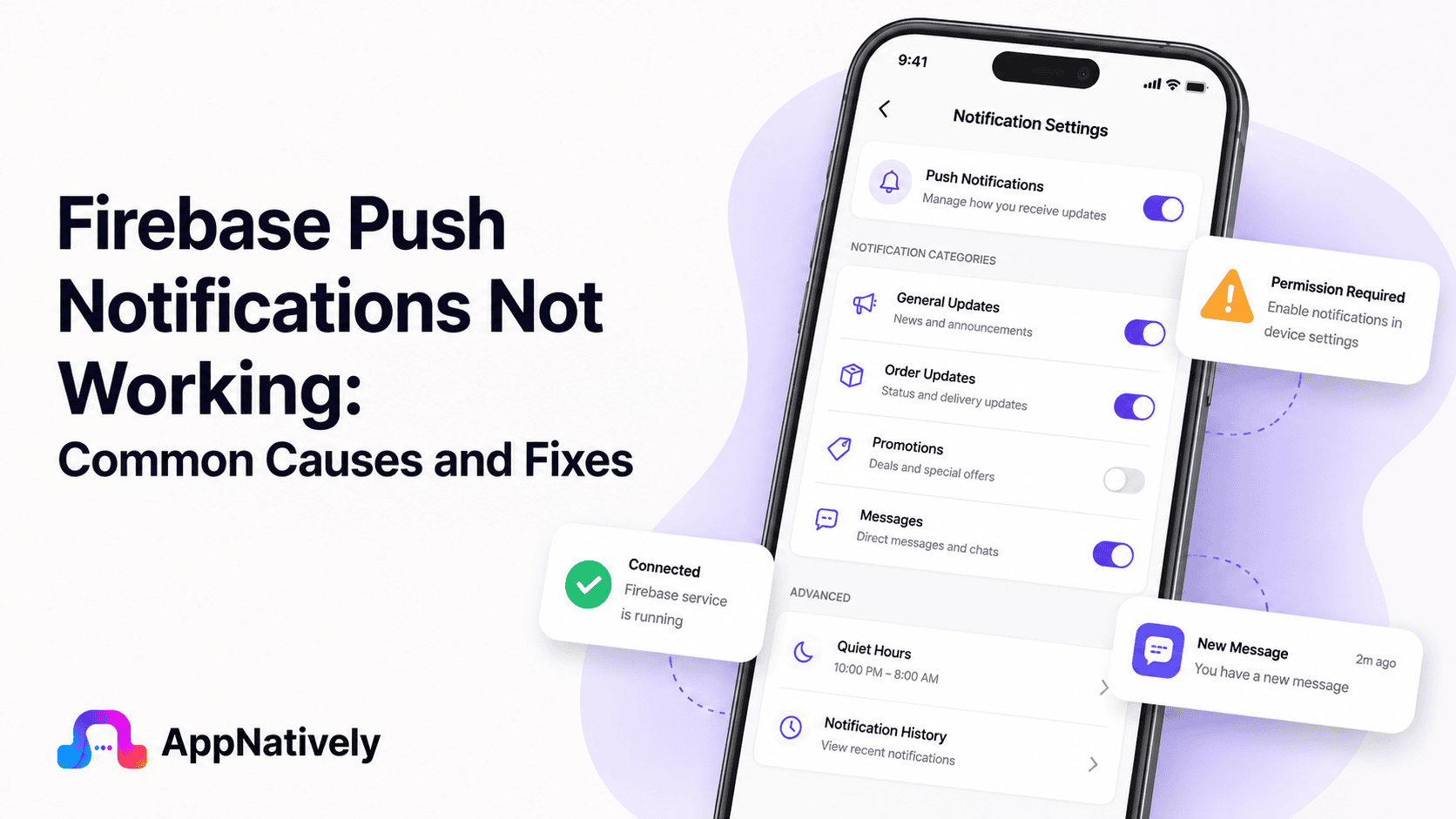
Push notifications are one of the most powerful tools for user engagement. They help businesses reconnect with users, deliver important updates, promote offers, and encourage app retention.
For many mobile applications, Firebase Cloud Messaging (FCM) serves as the backbone of push notification delivery. It is widely used because it’s free, scalable, and supports both Android and iOS platforms.
However, there are times when Firebase push notifications stop working as expected. Notifications may fail to arrive, appear with significant delays, or only work under certain conditions.
These issues can frustrate users and negatively impact engagement, retention, and conversion rates.
In this guide, we’ll explore the most common reasons Firebase push notifications fail, how to diagnose the issue, and the best solutions to restore reliable notification delivery.
What Is Firebase Cloud Messaging?
Firebase Cloud Messaging (FCM) is Google’s cross-platform messaging service that allows developers to send notifications and data messages to mobile devices.
FCM enables applications to:
- Deliver push notifications
- Send promotional messages
- Trigger in-app updates
- Synchronize data
- Re-engage inactive users
- Provide real-time alerts
Because it supports both Android and iOS, Firebase has become one of the most widely adopted notification solutions in mobile app development.
Why Firebase Push Notifications Stop Working
Push notifications rely on multiple systems working together.
The process typically involves:
- The application server sending a message
- Firebase processing the request
- Notification services routing the message
- The device receiving the notification
- The operating system displaying it
If any part of this chain fails, notifications may not reach users successfully.
Common Firebase Notification Issues
Firebase notification failures can appear in several different ways.
Notifications are not delivered at all
This is one of the most common issues.
Messages appear successful within Firebase, but users never receive them on their devices.
Notifications arrive late
Delayed notifications can significantly reduce effectiveness.
Users may receive alerts minutes or even hours after they were sent.
Notifications work only when the app is open
Some applications receive messages correctly while running but fail to display notifications when closed or in the background.
Android notifications work, but iOS notifications fail
Cross-platform notification systems often experience platform-specific configuration issues.
This frequently occurs due to Apple Push Notification Service (APNs) integration problems.
Notifications appear without content
In some cases, notifications arrive but display missing titles, body text, images, or actions.
Notification clicks don’t open the correct screen
Deep linking or routing issues can prevent users from reaching the intended destination after tapping a notification.
Common Causes of Firebase Push Notifications Not Working
Understanding the root cause is essential for resolving notification failures efficiently.
Incorrect Firebase configuration
Many notification issues originate during setup.
Examples include:
- Invalid project settings
- Incorrect package names
- Missing configuration files
- Improper SDK integration
Even small configuration mistakes can prevent notifications from working.
Expired or invalid device tokens
Firebase uses registration tokens to identify devices.
If a token becomes invalid, outdated, or deleted, notifications cannot be delivered successfully.
Token issues often occur when:
- Users reinstall apps
- Devices are reset
- Tokens expire
- App data is cleared
Notification permissions are disabled
Modern versions of Android and iOS require explicit notification permissions.
If users deny permission requests, notifications cannot appear even if Firebase delivers them successfully.
APNs configuration issues on iOS
Firebase notifications on iOS rely on Apple Push Notification Service.
Common APNs-related problems include:
- Missing APNs key
- Expired certificates
- Incorrect Team ID
- Invalid Bundle ID
- Improper Firebase linking
A single APNs configuration error can block all notification delivery.
Battery optimization restrictions
Many devices aggressively manage background activity.
Battery optimization settings can interfere with:
- Background processing
- Notification synchronization
- Real-time message delivery
This issue is particularly common on Android devices.
Incorrect notification payload structure
Improperly formatted payloads can cause notifications to fail.
Examples include:
- Missing required fields
- Invalid JSON syntax
- Unsupported data formats
- Incorrect message structure
Payload errors often prevent devices from processing messages correctly.
Background data restrictions
Firebase requires background connectivity to receive notifications.
If background data is restricted, notifications may be delayed or blocked entirely.
Outdated Firebase SDK
Older SDK versions may contain bugs, compatibility issues, or deprecated features.
Keeping Firebase dependencies updated helps maintain reliable notification delivery.
Server-side implementation errors
Firebase does not always cause notification failures.
Backend systems may introduce problems such as:
- Invalid API requests
- Authentication failures
- Incorrect targeting
- Expired credentials
- Rate limiting issues
How to Fix Firebase Push Notifications Not Working
The following troubleshooting steps resolve most Firebase notification issues.
1. Verify Firebase project configuration
Start by reviewing your Firebase setup.
Confirm that:
- The correct Firebase project is connected
- Package names match
- Configuration files are current
- SDK integration is complete
Small inconsistencies often cause major notification failures.
2. Test device token generation
Ensure devices successfully receive registration tokens.
Developers should verify:
- Token creation
- Token refresh handling
- Token storage
- Backend synchronization
Without a valid token, Firebase cannot deliver notifications.
3. Check notification permissions
Review notification settings on the device.
Ensure users have granted permission for:
- Alerts
- Sounds
- Badges
- Lock screen notifications
This step is especially important on newer Android and iOS versions.
4. Validate notification payloads
Incorrect payloads are a common source of notification failures.
Verify:
- JSON formatting
- Required parameters
- Notification fields
- Data payload structure
Testing with Firebase Console can help isolate payload-related issues.
5. Update Firebase SDK dependencies
Running outdated SDK versions may create compatibility problems.
Regular updates provide:
- Bug fixes
- Security improvements
- Performance enhancements
- Platform compatibility updates
6. Monitor Firebase logs
Firebase provides valuable diagnostic information.
Review logs for:
- Delivery failures
- Authentication issues
- Token errors
- Message processing problems
Logs often reveal the exact source of notification issues.
7. Test on multiple devices
Device-specific restrictions can create inconsistent behavior.
Testing across multiple devices helps determine whether issues are platform-wide or isolated.
8. Verify backend implementation
Review server-side notification code carefully.
Check:
- Authentication credentials
- API requests
- Message formatting
- Device targeting
- Error handling
Many notification failures originate from backend systems rather than Firebase itself.
Android-Specific Firebase Notification Fixes
Android introduces several unique challenges for notification delivery.
Disable battery optimization
Battery-saving features can delay or block notifications.
Developers should recommend users exclude important apps from aggressive battery management systems.
Verify notification channels
Android notification channels determine how alerts are displayed.
If channels are disabled, notifications may be delivered but never shown.
Review:
- Channel creation
- Importance levels
- User settings
- Notification categories
Check foreground notification handling
By default, Android may process notifications differently depending on whether the app is:
- Open
- In the background
- Fully closed
Ensure notification handling logic covers all application states.
Verify background services
Background restrictions can affect notification delivery.
Applications requiring real-time communication should properly implement foreground services when necessary.
iOS-Specific Firebase Notification Fixes
iOS notification delivery depends heavily on Apple infrastructure.
Verify APNs integration
Confirm Firebase is correctly connected to Apple Push Notification Service.
Check:
- APNs authentication key
- Bundle ID
- Team ID
- Firebase project settings
Most iOS notification failures originate here.
Enable push notification capabilities
Within Xcode, ensure the application includes:
- Push Notifications capability
- Background Modes
- Remote Notifications support
Missing capabilities prevent proper notification functionality.
Check Focus modes
Focus modes can suppress notifications.
Users may believe notifications aren’t arriving when they are simply being hidden.
Review:
- Do Not Disturb
- Work Focus
- Personal Focus
- Sleep Focus
Verify Background App Refresh
Background App Refresh helps maintain communication between the app and notification services.
Disabling it can impact delivery reliability.
How AppNatively Helps Build Reliable Notification Systems
Push notifications are most effective when they’re built on a stable mobile application architecture.
AppNatively helps businesses create native mobile apps designed for performance, reliability, and seamless user engagement.
A properly structured native application can simplify notification implementation while reducing the risk of platform-specific delivery issues.
Benefits include:
- Native Android and iOS performance
- Better integration with Firebase services
- Improved notification reliability
- Faster app deployment and updates
- Enhanced user engagement capabilities
Whether you’re launching a new mobile app or improving an existing one, building with a native-first approach helps create a stronger foundation for push notification success.
Frequently Asked Questions
Why are Firebase notifications not arriving on Android?
Common causes include disabled notification permissions, battery optimization restrictions, invalid device tokens, or notification channel issues.
Why do Firebase notifications work on Android but not iPhone?
This usually indicates APNs configuration problems, missing push notification capabilities, or iOS permission-related issues.
How do I know if my Firebase token is valid?
Developers can verify token generation through application logs and Firebase diagnostics tools.
Can battery-saving mode block Firebase notifications?
Yes. Aggressive battery optimization can delay or prevent notification delivery, especially on Android devices.
Does Firebase guarantee notification delivery?
No. Firebase significantly improves delivery reliability, but network conditions, device settings, operating system restrictions, and user permissions can still affect delivery outcomes.
Final Thoughts
Firebase push notifications not working can impact user engagement, retention, and overall app performance. Because notification delivery depends on multiple systems working together, diagnosing the root cause requires a structured troubleshooting approach.
Most issues stem from configuration errors, invalid device tokens, permission settings, APNs integration problems, outdated SDKs, or platform-specific restrictions.
By carefully reviewing your Firebase setup, validating notification payloads, monitoring delivery logs, and following platform best practices, you can significantly improve notification reliability across Android and iOS devices.
For modern mobile apps, reliable push notifications are no longer optional. They’re a critical part of delivering timely communication and maintaining strong user engagement.