

How to Create a Directory App in Minutes Without Coding (Step-by-Step Guide)

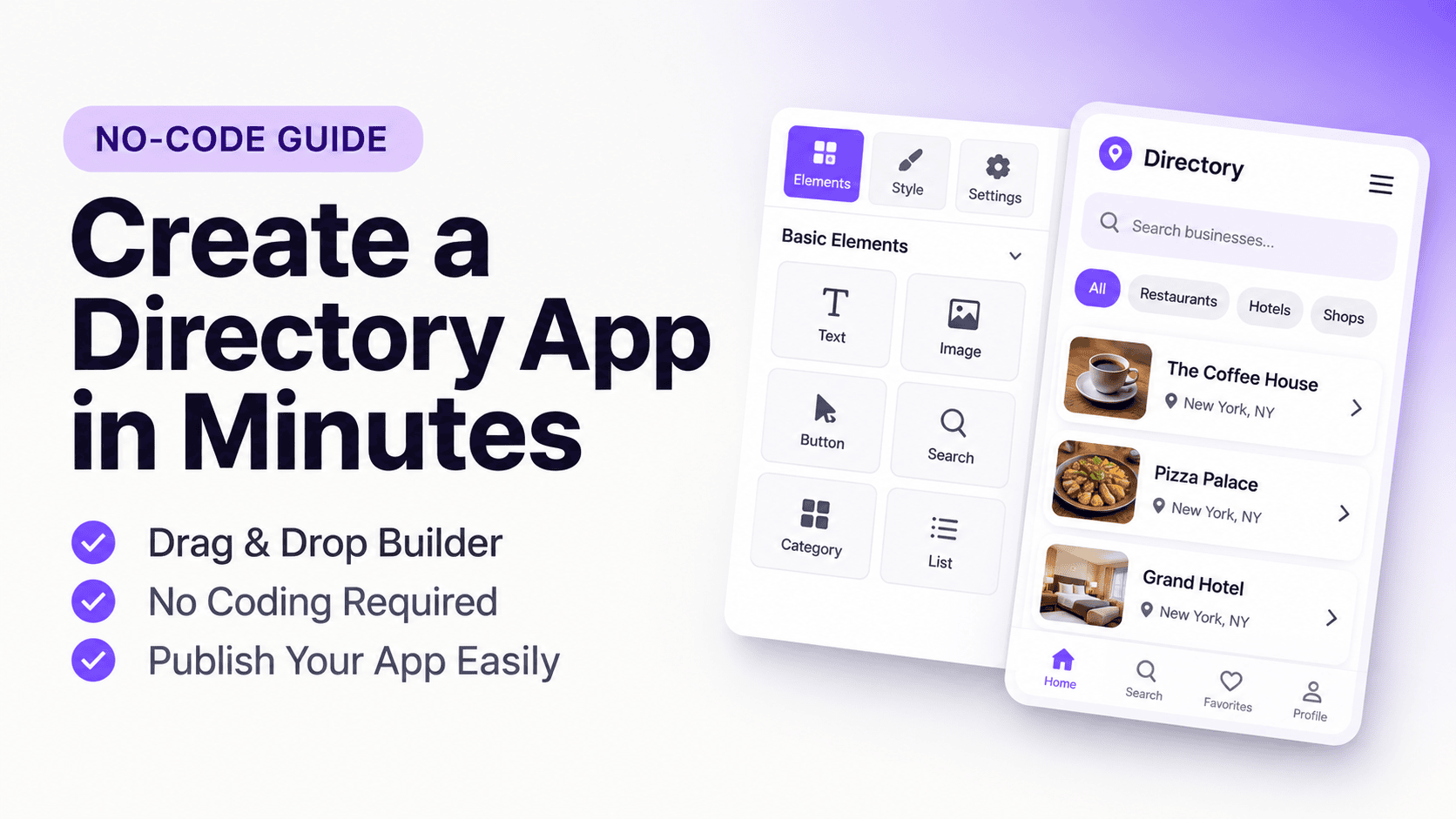
Creating a directory app no longer requires months of development, expensive developers, or complex coding. With the right app builder, you can turn your existing directory website into a fully functional native mobile app in just a few minutes.
Whether you run a business directory, real estate listing platform, job board, local service marketplace, or niche community directory, a mobile app makes it easier for users to discover listings, search for services, explore business profiles, and connect with providers on the go.
In this guide, you'll learn how to create a directory app in minutes using AppNatively, customize its screens with a drag-and-drop builder, connect your existing directory website, and prepare your app for submission to the Apple App Store and Google Play Store, without rebuilding your directory from scratch.
The best part? Your existing directory website remains the central platform for managing listings and content, while your mobile app provides users with a native app experience on iOS and Android.
Before You Start
Make sure you have:
- A working directory website with Wordpress installation.
- A supported directory plugin, such as Directorist, GeoDirectory, HivePress, or another compatible directory solution
- An AppNatively account
Note: AppNatively works best when your WordPress directory plugin properly manages your directory functionality and data.
How to Create a Directory App: Step-by-Step Guide
Step 1: Install & activate our open-source AppNatively plugin
Log in to your Wordpress admin panel.
- Go to the Plugins page.
- Click Add Plugin.
- Install & activate the AppNatively plugin.
Step 2: Create your app
To do this, log in to your AppNatively account first.
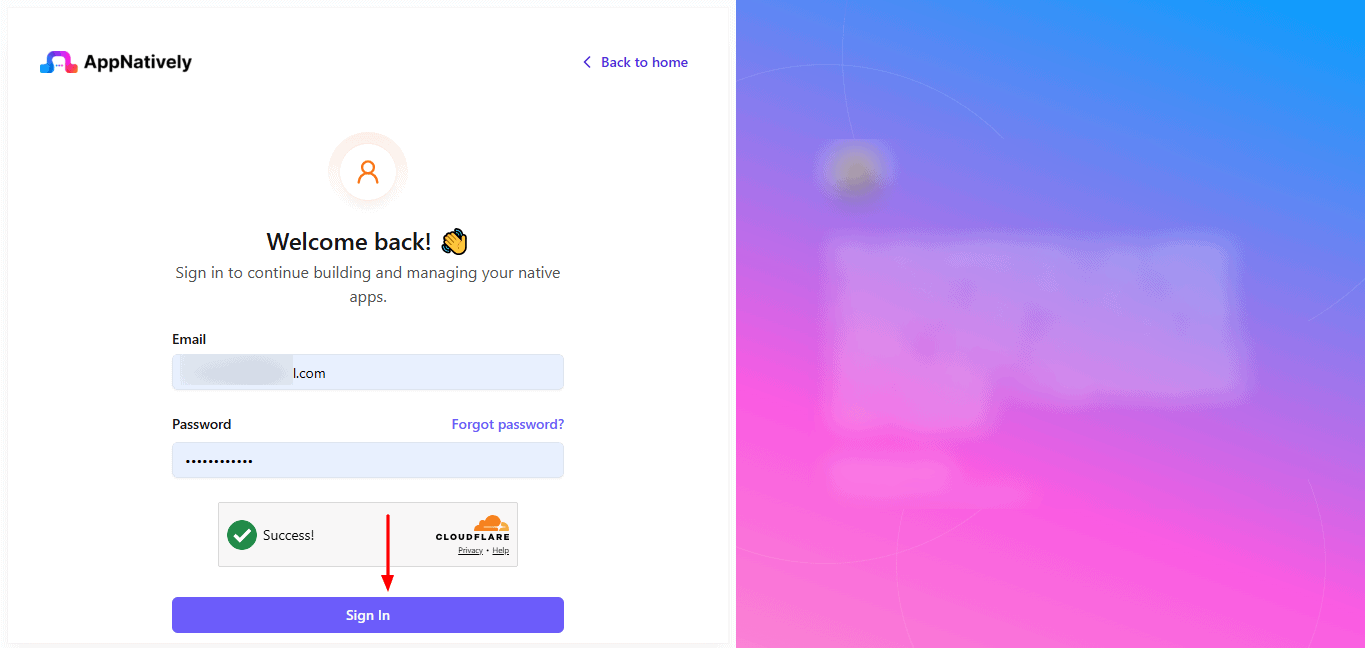
Go to the AppNatively workspace
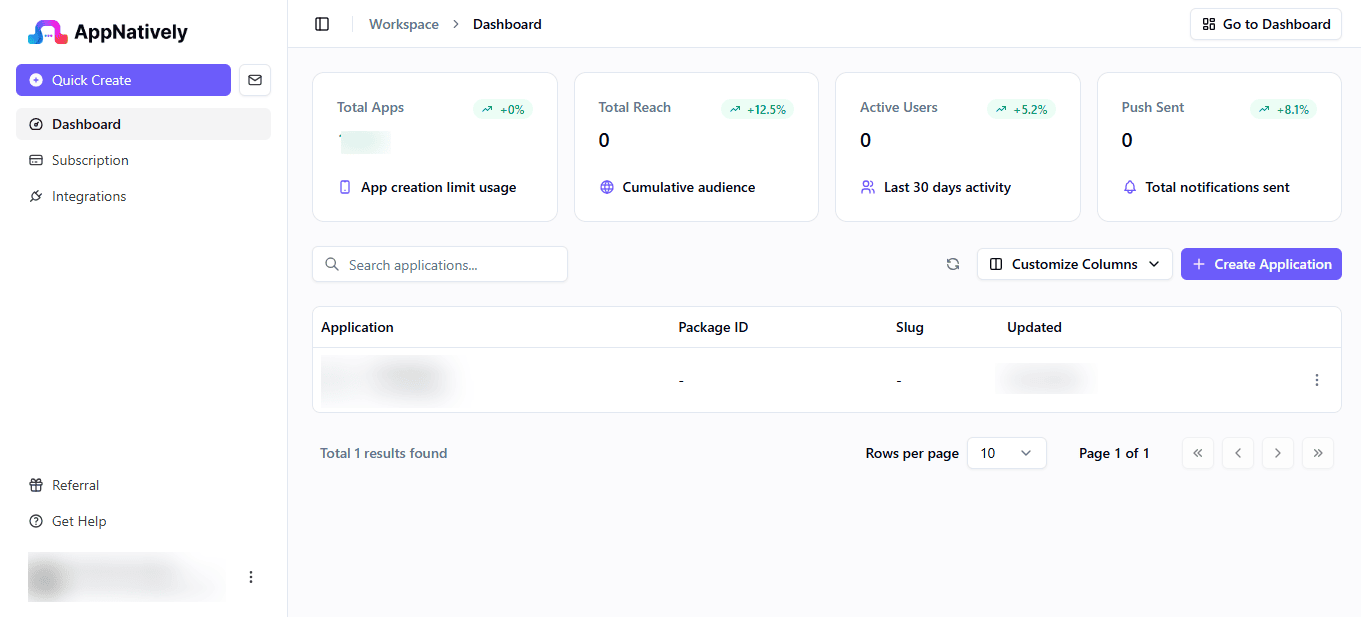
Then, click Create Application
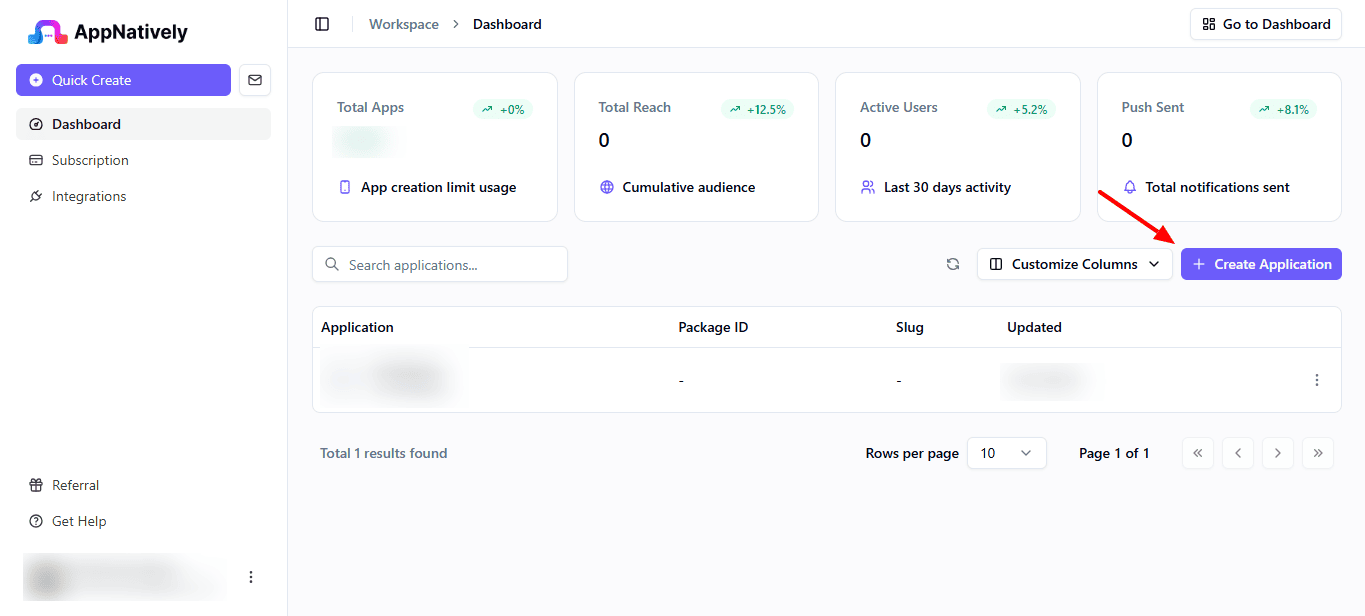
Next, enter your App Name and Niche.
Step 3: Connect your directory website
- Go to the Website Connection page.
- Collect the website URL & Connection key from the AppNatively plugin dashboard.
- Fill out the Website URL & Connection key field and click Save Configuration.
- After successful connection, integrated plugins are available to connect.
- Select your directory plugin, like Directorist, HivePress, GeoDirectory, or other directory plugins, from the Directory dropdown
- Finally, click Save Configuration.
Step 4: Configure home page
For the Directory niche, AppNatively provides dedicated directory components that make it easy to build your app's home page.
The Listings component fetches listings directly from your directory website. You can customize various aspects of how listings are displayed, including:
- Grid or List layout
- Listing elements and their positions
- Pagination
- Number of listings
- Display options and styling
The Listings Query component allows you to display a specific set of listings based on different criteria. You can filter listings by:
- Categories
- Locations
- Tags
- Featured listings
This makes it easy to create sections such as Featured Listings, Popular Listings, or Listings by Category on your home page.
Locations & Categories components
The Locations and Categories components automatically fetch locations and categories from your directory website.
You can use these components to help users quickly discover listings based on their preferred category or location.
Step 5: Customize other pages
Other pages like Listings, Listing details, Category listings, Location listings, Categories, Locations, Search result, Wishlist, Map view have their own component for the directory niche. You can drag the component to the builder canvas and update the component settings and style as you wish.
AppNatively provides dedicated components for different directory pages, allowing you to build and customize each page according to your requirements.
You can create and customize pages such as:
- Listings
- Listing Details
- Category Listings
- Location Listings
- Categories
- Locations
- Search Results
- Wishlist
- Map View
Each page has its own dedicated directory components. Simply drag and drop the required component onto the builder canvas, then configure its settings and styling to match your app's requirements.
You can customize the component's layout, content, appearance, and other available settings to create a consistent and user-friendly directory app experience.
Step 6: Customize your app design
AppNatively gives you extensive customization options, so your app doesn't simply look like a mobile version of your website.
You can customize components such as:
- Colors
- Typography
- Spacing
- Border
- Shadow
- Layouts
- Navigation
- Icons & Images
Use your existing brand identity to create a consistent experience across your website and mobile app.
Step 7: Configure app navigation
From the Navigation tab, you can create and customize navigation for your app.
To add a new navigation:
- Click the + button.
- Enter a title for the navigation.
- Click Create Bottom Navigation.
- Add navigation items using the repeater in the right sidebar.
- Select the navigation type from the Tab Bar Style dropdown.
- Customize the navigation appearance using the available style controls.
You can use these options to create a navigation structure that makes it easy for users to access the most important sections of your app.
Step 8: Configure app header
From the Headers tab, you can create and customize headers for different pages of your app.
To add a new header:
- Click the + button.
- Enter a title for the header.
- Click Create Header.
- Drag and drop components from the left sidebar into the header.
- Assign the header to the specific pages where you want it to appear.
You can customize the header components and styling based on your app's requirements.
Step 9: Preview and test your app
After completing your app design, you can preview and test it using the official AppNatively Go app, available for both Android and iOS.
To preview your app:
- Click the Eye icon in the top-right corner of the builder.
- Click Start New Session to start a preview session.
- Install the AppNatively Go app on your Android or iOS device.
- Open the AppNatively Go app and enter the Session ID displayed in the builder, or scan the QR code shown at the bottom of the preview panel.
- Your app will open in AppNatively Go, allowing you to preview and test the app on your mobile device.
Use the preview session to test your app's navigation, layouts, components, and user interactions before proceeding with the final app build.
Step 10: Build your native app
Once you have completed the configuration and thoroughly tested your app, you can generate the native mobile app build.
To build your app:
- Go to the Build & Deploy page.
- Click the Trigger Build button.
- In the Build modal, select the Target Version and enter the Build Version.
- Fill in the remaining required fields.
- Click Start Build to begin the build process.
- Once the build is completed successfully, you can download the generated build file from the build history table.
You can use the downloaded build file for further testing or to proceed with the app publishing process.
Conclusion: Create Your Directory App in Minutes Without Coding
Creating a directory app doesn't have to be a complicated or expensive project. You don't need to hire developers, rebuild your existing directory platform, or spend months developing separate iOS and Android applications.
With a solution like AppNatively, you can turn your existing directory website into a native mobile app in minutes. You can customize app screens using a drag-and-drop builder, display business listings, add search and filtering experiences, and create a mobile experience that fits your directory's needs.
Whether you run a local business directory, real estate platform, job board, or niche listing website, having a dedicated mobile app can make your platform more accessible and convenient for users.
If your directory website is already up and running, you have a head start. Instead of building everything from scratch, use AppNatively to bring your directory experience to iOS and Android.
Ready to turn your directory website into a mobile app? Get started with AppNatively and build your directory app without writing a single line of code.
Frequently asked questions
You can create a directory app without coding by using a no-code app builder such as AppNatively. Connect your existing directory website, customize your app screens using a drag-and-drop builder, configure listing layouts and navigation, and prepare your app for submission to the Apple App Store and Google Play Store.
With a no-code app builder like AppNatively, you can create the initial version of your directory app in minutes. The actual time depends on your app's complexity, the number of screens, integrations, and customization requirements. App Store and Google Play review and approval take additional time.
Yes. You can convert your existing directory website into a mobile app without rebuilding your entire platform. AppNatively connects to your existing website through APIs, allowing your app to access your website's existing data and directory functionality.
Yes. AppNatively allows you to build apps for both Android and iOS using one visual app-building platform. You can customize the app experience and prepare separate submissions for the Google Play Store and Apple App Store.
Yes. You can display business listings from your existing directory website inside your mobile app. The available listing information and functionality depend on your directory platform, API connectivity, and app configuration.
Yes. You can build search and filtering experiences into your directory app. These features help users find relevant businesses, services, products, or other listings based on their requirements. The available functionality depends on your directory platform and integration setup.
Yes. AppNatively supports building mobile apps for directory websites powered by popular WordPress directory plugins, including Directorist, GeoDirectory, and HivePress. You can connect your website and configure the mobile experience around your directory's available data and functionality.
No. AppNatively connects to your existing website through direct API requests. Your website remains the central place for managing directory data, so you don't need to create a separate database for your mobile app.
Yes. AppNatively provides a drag-and-drop app builder that lets you customize screens, layouts, components, navigation, and other visual elements. You aren't limited to a fixed directory app template.
Yes. You can use push notifications to communicate with app users, announce new listings, share important updates, and encourage users to revisit your directory. AppNatively supports unlimited push notifications.
They serve different purposes and work best together. A directory website helps people discover your platform through search engines, while a mobile app offers convenient access, push notifications, and a dedicated mobile experience. Having both gives users more ways to interact with your directory.
The cost depends on the development approach, required features, integrations, and customization. Traditional custom app development can require a significant investment. No-code solutions like AppNatively offer a more accessible alternative by letting you build native mobile apps without hiring a dedicated development team.
Yes. You can prepare your directory app for submission to both stores using AppNatively. You'll need your own Apple Developer and Google Play Developer accounts to submit the apps. You remain in control of the publishing process.
No. AppNatively is a drag-and-drop native app builder designed for users without coding experience. You can build and customize your mobile app visually, with AI assistance available to help with the app-building process.
Related posts
AppNatively vs BuildFire vs MobiRoller vs AppMySite vs AppPresser vs Thunkable vs GoodBarber: Which App Builder Is Best?

Why Do People Install Apps Instead of Using Websites?

AppNatively vs Tapcart vs MobiLoud vs Shopney: Which Shopify Mobile App Builder Is Best in 2026?



