

Shopify App Not Syncing Products: Troubleshooting Guide

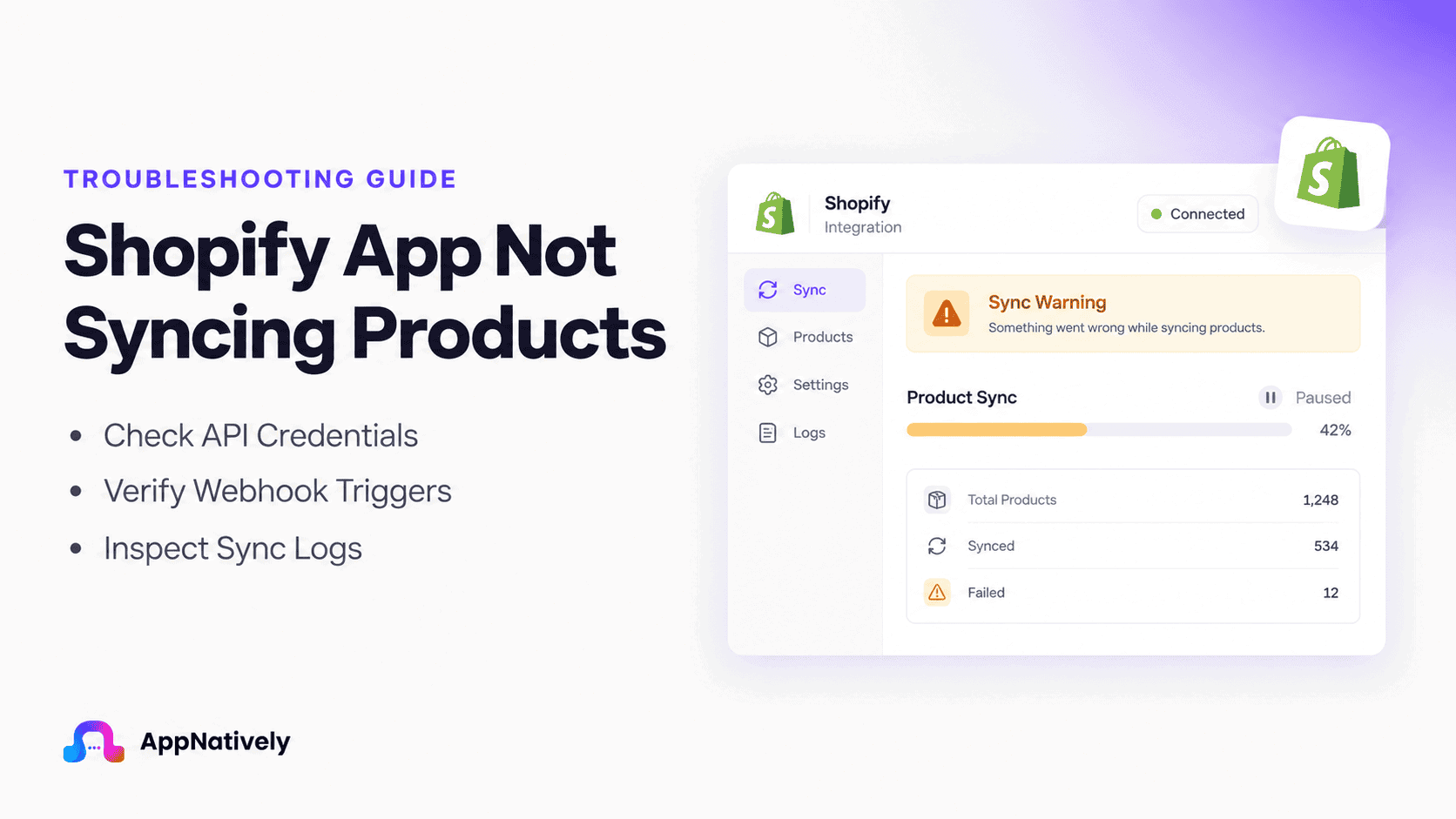
Your Shopify products are live, your store is working, and then you notice something is wrong: your mobile app is not showing the latest products.
Maybe newly added products are missing. Prices or inventory look outdated. Product images are not updating. Or worse, some products appear in Shopify but never make it into your app.
For an online store, these sync issues can quickly turn into more than a technical inconvenience. Customers may see incorrect information, miss new products, or lose confidence when what they see in the app does not match your store.
The good news is that a product sync problem does not always mean something is seriously broken. It can be caused by anything from a delayed sync or connection issue to API permissions, product visibility settings, inventory configuration, caching, or an integration problem.
In this guide, we’ll walk through the most common reasons Shopify products are not syncing with your mobile app, how to identify the actual cause, and the practical steps you can take to fix it and keep your product catalog up to date.
What Does Shopify Product Syncing Actually Mean?
Shopify product syncing is the process of transferring product information from your Shopify store to another system, such as a mobile app, marketplace, POS system, ERP, CRM, or other external platform.
Depending on the integration, this can include:
- Product names
- Descriptions
- Prices
- Product variants
- Images and media
- Inventory quantities
- Product status
- Collections
- Tags
- SKUs
- Product availability
- Other product metadata
For a mobile app, the goal is usually simple: when you update your Shopify store, the same information should eventually appear in the app.
Modern Shopify integrations can retrieve product data through Shopify APIs, while event-driven integrations can use webhooks to receive notifications when relevant data changes. Shopify specifically documents the products query as a way to synchronize product data with external systems.
When that process fails, your Shopify store and mobile app can become inconsistent.
How to Tell If Your Shopify Products Are Not Syncing
Before changing anything, confirm that you actually have a synchronization problem.
Open your Shopify admin and compare a few products with what appears in your mobile app.
Check:
- Is the product visible in Shopify?
- Is the product visible in the app?
- Is the product status correct?
- Is the price the same?
- Are the correct variants displayed?
- Are product images appearing?
- Is inventory accurate?
- Are recently edited products updated?
- Are only certain products missing, or the entire catalog?
- Are new products affected while older products still work?
This comparison can help narrow down the problem.
For example, if all products are missing, the problem may involve authentication, API access, or the integration itself.
If only newly added products are missing, publishing, filtering, webhook, or incremental-sync issues become more likely.
If products appear but prices or inventory are outdated, the product sync may be working while a specific data synchronization process is failing.
Common Reasons Shopify Products Are Not Syncing
There isn’t one universal cause of Shopify sync problems. The issue usually falls into one of several categories.
1. The product is not active
One of the first things to check is the product’s status.
Shopify supports product statuses including Active, Draft, Archived, and Unlisted. An Active product is ready to be sold, while Draft and Archived products have different availability behavior.
If a product is still in Draft status, an integration may intentionally exclude it.
How to check
Go to:
Shopify Admin → Products
Open the product and check its status.
If appropriate, change it to Active.
Then check whether your app or integration picks it up during the next synchronization.
Important
Don’t assume that every integration treats every Shopify product status in exactly the same way.
Some integrations may intentionally sync only products that are active or available through a particular channel.
2. The product is not available to the relevant sales channel
A product can exist in Shopify without being available everywhere.
Shopify allows merchants to control where products are published. This matters because an integration may use product availability or channel-related information when deciding which products to retrieve.
Shopify’s documentation also distinguishes product status from publishing availability.
What to check
Open the product in Shopify and review its availability or sales-channel settings.
Make sure the product is available through the channel or integration your app relies on.
If the product is intentionally unavailable, the app may be behaving correctly rather than experiencing a technical failure.
3. Your app does not have the required Shopify permissions
This is one of the more important technical causes of synchronization problems.
Shopify apps use access scopes to determine what store data they can access.
For example, Shopify documents read_products for reading products, variants, and collections. Inventory data can require read_inventory, depending on what the integration needs to retrieve.
If an integration doesn’t have the necessary permissions, it may not be able to retrieve the information required for synchronization.
What this can look like
You may notice:
- Products don’t appear at all
- Product details are incomplete
- Variants are missing
- Inventory doesn’t update
- A previously working integration stops retrieving certain data
- Reconnecting the integration appears to fix the issue
Shopify also notes that declaring an access scope does not automatically mean an installation has that scope. The actual granted scopes can differ from the scopes configured by the app.
What to do
If you’re a store owner, check the integration’s connection settings and reconnect it if the provider recommends doing so.
If you’re developing the integration, verify the actual granted scopes rather than assuming the configured scopes are available.
4. The Shopify connection has expired or been revoked
Your integration needs valid authorization to communicate with Shopify.
If the connection was removed, revoked, corrupted, or otherwise became invalid, the app may stop receiving product updates.
This can happen after:
- Reinstalling an app
- Changing integrations
- Revoking permissions
- Updating authentication
- Changing the connected store
- Modifying API access
Fix
Go to the integration’s settings and check its connection status.
If necessary:
- Disconnect the Shopify store.
- Reconnect it.
- Approve the requested permissions.
- Run a full product synchronization.
- Check whether new products appear.
If reconnecting fixes the problem, the original issue was likely related to authorization or the integration’s stored credentials.
5. The sync has not run yet
Not every integration updates products instantly.
Some systems use scheduled synchronization instead of real-time updates.
For example, an integration might check Shopify every few minutes or run a periodic catalog synchronization.
That means this sequence can be completely normal:
Add product in Shopify → wait for sync → product appears in app
If you’re checking immediately after making a change, give the integration enough time to complete its sync cycle.
What to check
Look for settings such as:
- Sync frequency
- Last sync
- Next sync
- Sync status
- Manual sync
- Full sync
- Incremental sync
If the integration provides a Sync Now button, use it and test again.
6. The integration’s webhooks are not working
Real-time integrations often use webhooks to detect changes.
A webhook allows Shopify to notify an external system when an event occurs instead of forcing that system to repeatedly check Shopify.
Shopify documents webhook topics for events such as product updates, and its documentation explains that webhooks can allow apps to react to changes quickly.
For example:
Shopify product updated → webhook triggered → integration receives event → app data updated
If the webhook isn’t registered, isn’t being delivered, or isn’t being processed correctly, your app may continue showing old product information.
Developer checklist
Check:
- Is the webhook subscription active?
- Is the correct topic configured?
- Is Shopify successfully delivering the event?
- Is the endpoint reachable?
- Is webhook authentication being validated correctly?
- Is the application processing the event?
- Are failed deliveries being logged?
- Is the application updating the correct product?
Shopify also provides webhook event information such as event IDs and timestamps that can help developers investigate delivery problems.
7. Your app is showing cached product data
Sometimes Shopify is syncing correctly, but the mobile app is displaying old data.
This can happen when your app or backend uses caching.
For example:
Shopify → Backend → Cache → Mobile app
If the cache isn’t invalidated after a product update, the app may continue displaying the previous version.
Symptoms
You may see:
- Old product prices
- Old images
- Deleted products still appearing
- Recently added products missing
- Correct information appearing after restarting the app
- Different data between devices
Try this
Depending on the app architecture:
- Close and reopen the app.
- Refresh the product catalog.
- Clear the app cache if supported.
- Log out and back in.
- Trigger a manual sync.
- Test the same product through the Shopify storefront or API.
If the backend contains the updated product but the mobile app doesn’t, the problem may be on the app or caching layer rather than Shopify.
8. The app is filtering products
Your app may not be designed to display every Shopify product.
An integration can apply filters based on:
- Product status
- Collections
- Tags
- Product type
- Vendor
- Inventory
- Availability
- Published status
- Custom rules
For example, the app might intentionally display only products tagged mobile-app.
This can make a synchronization problem look like a Shopify problem.
How to troubleshoot
Take one missing product and compare it against a product that appears correctly.
Look for differences in:
- Status
- Collection
- Tags
- Vendor
- Product type
- Availability
- Inventory
- Variants
If the missing products share the same attribute, you’ve probably found an important clue.
9. Product variants are not syncing correctly
Shopify products can have multiple variants, such as:
- Small / Medium / Large
- Black / White / Blue
- 64 GB / 128 GB / 256 GB
A product may appear in the app while its variants do not.
This is a different problem from a completely missing product.
Shopify’s product data model includes variants and their associated information, and the API can return product variants along with product information.
Check
Compare:
- Variant names
- Variant IDs
- Prices
- SKUs
- Images
- Inventory
- Availability
If only certain variants are missing, the integration may be handling the product correctly but failing to map variant-level data.
10. Inventory data is not updating
Product information and inventory information aren’t necessarily synchronized through exactly the same mechanism.
You might have:
Product name: Updated
Description: Updated
Image: Updated
Price: Updated
Inventory: Old
This can happen because inventory is managed separately from general product information.
Shopify provides inventory-specific access scopes and webhook events for inventory changes.
Check these areas
- Inventory tracking
- Inventory locations
- Available quantity
- Inventory permissions
- Inventory webhook processing
- Variant mapping
- Fulfillment configuration
If your app shows the correct product but incorrect stock levels, focus your investigation on inventory synchronization rather than the entire product catalog.
11. Multiple Shopify locations are causing confusion
Shopify stores can manage inventory across multiple locations.
For example, you might have:
- Warehouse A
- Warehouse B
- Retail Store
- Fulfillment Center
Your mobile app may need to determine which location’s inventory should be displayed.
If the integration uses only one location while your Shopify store manages several, the numbers can appear incorrect.
Example
Shopify:
Warehouse A: 5 units
Warehouse B: 20 units
Total inventory might be 25, but an integration displaying only Warehouse A could show 5.
So when inventory appears wrong, don’t only check the product itself. Check where the inventory is being managed.
12. The product was recently created or updated in bulk
Bulk changes can expose synchronization problems that aren’t obvious when updating one product at a time.
For example, you might:
- Import hundreds of products
- Update prices in bulk
- Change product statuses
- Import inventory
- Add multiple variants
- Update product images
The external system may need time to process all those changes.
What to do
After a large update:
- Wait for the scheduled synchronization.
- Check the integration’s sync status.
- Look for failed records.
- Run a full sync if available.
- Test several products rather than only one.
If only a portion of the catalog is missing, check whether the missing products share a common attribute.
13. Pagination is preventing some products from being retrieved
This is primarily a developer-side problem.
Shopify product queries support pagination because stores can have large catalogs.
If an integration retrieves only the first page of results and doesn’t continue through the remaining pages, it may appear to work perfectly for a small store while silently missing products from larger catalogs.
Example
Suppose the store contains:
2,000 products
But the integration retrieves only the first batch.
The app might show:
250 products
The merchant may think the remaining products failed to sync individually, when the actual issue is incomplete pagination.
Developer checklist
Verify that the integration:
- Uses cursor-based pagination correctly
- Continues until all pages are processed
- Handles large catalogs
- Doesn’t stop after the first response
- Stores synchronization progress
- Recovers from interrupted syncs
This becomes particularly important as a Shopify store grows.
14. API errors or rate limits are interrupting the sync
Shopify integrations communicate through APIs, and API requests can fail.
Possible causes include:
- Temporary server errors
- Authentication failures
- Invalid requests
- Permission errors
- Rate limits
- Network failures
- Incorrect API version usage
- Application-side errors
Shopify’s current documentation recommends the GraphQL Admin API for new app development, while the REST Admin API is now considered legacy.
If you’re maintaining an older integration, API compatibility is worth checking.
What developers should inspect
Look at the logs for:
- HTTP status codes
- GraphQL errors
- Authentication errors
- Permission errors
- Timeout errors
- Rate-limit responses
- Failed webhook processing
- Failed database writes
Don’t simply retry everything indefinitely. A permission error and a temporary network error require different solutions.
15. The product data mapping is incorrect
Sometimes the data reaches the app but is mapped incorrectly.
For example:
Shopify field: product.title
App field: Product Name
If the integration maps the wrong field or expects an older data structure, information can disappear or appear incorrectly.
This is especially common with:
- Custom fields
- Metafields
- Product variants
- Images
- Inventory
- Collections
- Product descriptions
How to identify a mapping issue
If the product exists in the app but certain information is missing, compare the raw Shopify data with what the app expects.
For developers, inspect the API response and the transformation layer between Shopify and the app.
How to Troubleshoot Shopify Product Sync Step by Step
Instead of randomly changing settings, follow a structured process.
Step 1: Pick one missing product
Don’t start with your entire catalog.
Choose one product that exists in Shopify but doesn’t appear correctly in the app.
Record:
- Product ID
- Product title
- Variant
- SKU
- Status
- Price
- Inventory
- Collection
- Tags
This gives you a controlled test case.
Step 2: Confirm the product is active
Go to:
Shopify Admin → Products
Check the product status.
If it’s Draft or otherwise unavailable to the relevant channel, fix that first. Shopify’s product status directly affects whether a product is ready to be sold.
Step 3: Check product availability
Confirm that the product is available to the channel or integration you’re using.
Don’t assume that being visible in the Shopify admin automatically means every external system should receive it.
Step 4: Check the Shopify connection
Open your mobile app integration and verify that the Shopify store is still connected.
If necessary, reconnect it.
Step 5: Run a manual sync
If your integration provides a Sync Now, Refresh Products, or similar option, run it.
Wait for the operation to finish before checking the app.
Step 6: Check the last sync time
Look for:
- Last successful sync
- Last failed sync
- Number of products processed
- Number of products failed
- Error messages
This can immediately tell you whether the integration is actually running.
Step 7: Compare one working product with one missing product
This is one of the fastest ways to find hidden differences.
Create a simple comparison:
| Property | Working Product | Missing Product |
|---|---|---|
| Status | Active | ? |
| Collection | ? | ? |
| Tags | ? | ? |
| Vendor | ? | ? |
| Variants | ? | ? |
| Inventory | ? | ? |
| Availability | ? | ? |
Look for the first meaningful difference.
Step 8: Test a new product
Create a simple test product in Shopify.
Give it:
- A unique name
- One image
- One variant
- A simple price
- Active status
Then save it and trigger synchronization.
If the test product appears, the integration itself may be working and the problem could be specific to certain products.
If it doesn’t appear, investigate the integration or API connection.
What If Products Sync But Updates Don’t?
This is an important distinction.
Suppose:
Initial sync: Works
New products: Appear
Existing product updates: Don’t appear
That points toward a different set of problems.
Check:
- Product update webhooks
- Scheduled synchronization
- Cache invalidation
- Update event processing
- Product ID mapping
- Backend database updates
Shopify supports webhook events such as products/update, which can be used to react to product changes.
Your integration may have successfully imported the original product but failed to process subsequent changes.
What If Only Images Are Not Syncing?
If product names, prices, and variants are correct but images are missing, don’t rebuild the entire Shopify connection immediately.
Investigate image-specific issues.
Check:
- Image URL handling
- Image permissions
- CDN access
- Image format
- Image processing
- Image caching
- Product media mapping
- Mobile app image loading
Also check whether the image exists in Shopify and whether the integration actually retrieves product media.
What If Only Prices Are Not Syncing?
Check whether the product itself is updating.
If the title and image are current but the price is old, investigate:
- Variant pricing
- Compare-at prices
- Currency conversion
- Price mapping
- Cached data
- Market-specific pricing
- Scheduled synchronization
A product can have multiple variants with different prices, so make sure you’re comparing the same variant rather than only the parent product.
What If the Product Appears on the Website but Not in the App?
This is a common point of confusion.
The fact that a product is visible on your Shopify storefront does not necessarily mean the mobile app’s integration will retrieve it in exactly the same way.
The app may have its own:
- API permissions
- Product filters
- Synchronization rules
- Caching layer
- Product availability logic
- Backend database
- Mapping rules
Start by comparing the product’s Shopify status, availability, and data with a product that successfully appears in the app.
How to Prevent Shopify Product Sync Problems
Fixing the immediate problem is important, but preventing it from happening again is even better.
i. Use automatic synchronization
If possible, use event-driven updates rather than relying exclusively on manual synchronization.
Shopify’s webhook system can notify an application when relevant store events occur, allowing the integration to process changes without constantly polling Shopify.
ii. Keep a full sync option
Even a well-designed real-time system should have a recovery mechanism.
A Full Sync option can help recover when:
- Webhooks fail
- Products were imported externally
- Data becomes inconsistent
- The app was offline
- An integration was temporarily disconnected
iii. Monitor failed syncs
Don’t silently ignore errors.
A good synchronization system should show:
- Last successful sync
- Last failed sync
- Number of products processed
- Failed products
- Error reason
- Retry status
This turns troubleshooting from guesswork into a much simpler process.
iv. Keep API integrations updated
Shopify’s API ecosystem evolves over time. Shopify currently recommends the GraphQL Admin API for new app development, while its REST Admin API is legacy.
If your integration was built years ago, review its API version and architecture.
Turn Your Shopify Store Into a Native Mobile App With AppNatively
If you’re running a Shopify store and want to give customers a faster, more convenient way to shop from their phones, AppNatively can turn your existing Shopify store into a native iOS and Android app without requiring you to build everything from scratch.
AppNatively is a drag-and-drop native app builder designed to connect your existing website and ecommerce functionality with a mobile app experience. Instead of hiring developers to build a custom app from the ground up, you can use your existing Shopify store as the foundation and build your mobile experience around it.
With AppNatively, you can:
- Connect your Shopify store to your mobile app
- Display your Shopify products inside the app
- Build and customize app screens with a drag-and-drop builder
- Customize product and shopping experiences
- Keep your app connected to your existing ecommerce setup
- Add native mobile features such as push notifications
- Update your app through OTA updates without rebuilding the entire app for every change
- Prepare your app for submission to the Apple App Store and Google Play
The biggest advantage is that you don’t have to create a completely separate ecommerce operation just because you want a mobile app. Your Shopify store remains the foundation of your business while AppNatively helps you create a dedicated native mobile experience around it.
Want to Turn Your Shopify Store Into an App?
You can start building with AppNatively and explore the builder before committing to a paid plan.
Build your Shopify mobile app with AppNatively and turn your existing store into a native iOS and Android app without coding.
Final Thoughts: Shopify App Not Syncing Products
When Shopify products aren’t appearing correctly in a mobile app, the problem isn’t necessarily with Shopify itself.
The issue could be somewhere between the Shopify store, API permissions, product availability, synchronization process, webhooks, backend database, caching layer, and mobile app.
The fastest way to troubleshoot it is to isolate one missing product and follow the data from Shopify to the app.
Start with the basics: product status, availability, connection, permissions, and sync status. Then move deeper into variants, inventory, webhooks, API requests, caching, and backend processing if necessary.
For developers, Shopify’s API and webhook documentation are particularly useful when investigating synchronization architecture. Shopify’s current product API documentation explicitly describes product queries as a mechanism for syncing product data with external systems.
For store owners, the key is not to immediately assume that the entire integration is broken. Identify what is not syncing, determine where the data stops, and then fix that specific layer.
Frequently Asked Questions (FAQs)
Why are my Shopify products not showing in my mobile app?
Common causes include inactive products, availability settings, missing API permissions, broken authentication, delayed synchronization, filtering, caching, or a problem with the integration’s product retrieval process.
Why is my new Shopify product not appearing in my app?
Check that the product is Active and available to the relevant channel or integration. Then check the integration’s sync schedule or manually trigger a synchronization.
Why are Shopify product updates not showing in my app?
If the initial product sync works but later updates don’t, investigate product-update webhooks, scheduled synchronization, caching, and backend update processing.
Why is Shopify inventory not updating in my app?
Inventory may be synchronized separately from general product information. Check inventory permissions, locations, variant mapping, inventory events, and the integration’s inventory synchronization process.
How long does Shopify product syncing take?
It depends on the integration. Some systems update through webhooks and can react quickly, while others use scheduled synchronization. Check your integration’s documentation or sync status to determine its expected update interval.
Should I reconnect my Shopify store?
If the connection appears broken or permissions have changed, reconnecting can help reauthorize the integration. However, don’t repeatedly reconnect without checking the actual error, especially if the problem affects only specific products.
How do I know whether the problem is Shopify or my mobile app?
Compare the product in Shopify, the integration’s backend or API response, and the mobile app. If Shopify contains the correct information but the integration doesn’t retrieve it, investigate the integration. If the integration has the correct information but the app shows old data, investigate the mobile app or caching layer.
Can a Shopify product sync problem affect customers?
Yes. If an app displays outdated prices, inventory, product information, or missing products, customers may receive inaccurate information or be unable to find products that should be available. That’s why product synchronization is particularly important for ecommerce mobile apps.
Can a website-based mobile app sync Shopify products automatically?
Yes, depending on how the app builder or integration is designed. A Shopify-connected mobile app can retrieve product data through Shopify’s APIs and use synchronization mechanisms such as scheduled syncs or webhooks to keep product information current. Shopify provides APIs specifically for retrieving product data and supports webhooks for reacting to store events.
What should I do if nothing fixes the sync problem?
Document one or two affected products, collect the sync status and error messages, and contact your app or integration provider. Providing specific product IDs, timestamps, screenshots, and error details will make it much easier to identify the failure point.
Related posts
How to Create a Directory App in Minutes Without Coding (Step-by-Step Guide)

AppNatively vs BuildFire vs MobiRoller vs AppMySite vs AppPresser vs Thunkable vs GoodBarber: Which App Builder Is Best?

Why Do People Install Apps Instead of Using Websites?




