
Appnatively
Appnatively
Knowledge Base
Go to Studio
Knowledge Base
Go to Studio
Getting Started
Welcome to AppNativelyCreate your first appFinding your way around the Studio dashboard
Website Connection
Connect your website to AppNativelyInstall and update the required pluginChoose which plugins power your app“Website Not Connected” – what it means and how to clear itFix a failing or dropped connection
App Editor
Build your app with AI chatWrite prompts that get the screen you wantUndo an AI change you don’t wantEdit screens and components by handManage your app’s pagesDesign your headerDesign your bottom navigationAdd and edit drawersManage your themeHow your changes reach your usersSave vs. Publish – what each one doesWhen a new release is requiredWhen AI gets it wrong
Splash & App Icon
Set your app iconAdd Android Adaptive Icon layersDesign your splash screenRecommended image sizes
Publishing Setup
What you need before your first buildSet your app’s name, slug, and package IDAdd Android credentials and your keystoreAdd iOS certificates and provisioningConnect Google PlayConnect the App StoreSet up Firebase Configuration
Build & Deploy
Connect GitHub before you buildBuild your app – and submit it to the storeFix a failed build
Push Notifications
Create and send a push campaignTrack campaign performanceNotifications aren’t arriving
Integrations
Connect a third-party service

Publishing Setup

Before AppNatively can build your app and send it to the stores, several separate pieces have to be in place – your app’s identity, the signing credentials each store requires, the accounts you’ll submit through, and your Firebase configuration. This category is a checklist as much as it is a set of articles: each one is a single line item, explained in full, and the build wizard checks them all before it lets you continue.
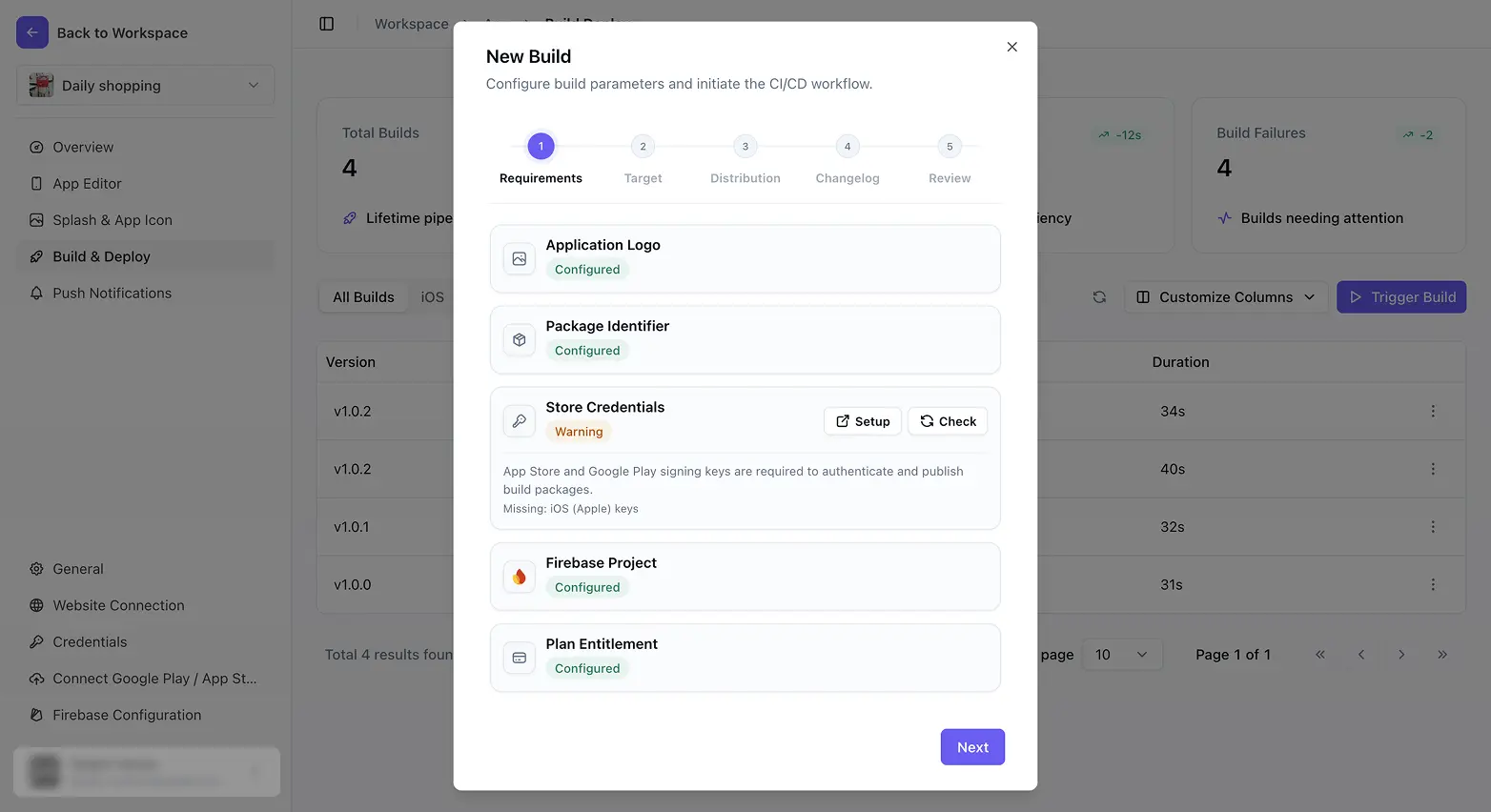
What Publishing Setup covers

Start with What you need before your first build – it lays out the whole checklist in one place, with a link to each thing that needs doing. From there, the articles work through them one at a time: your app’s name, slug, and package ID; Android signing and your keystore; iOS certificates and provisioning; the Google Play and App Store accounts AppNatively submits through; and Firebase Configuration, which is required for every build whether or not you ever send a push notification.

Two of these deserve a careful read rather than a skim – your package ID and your signing credentials both become very hard to change once your app is live in a store.

Before you start

You’ll need an app icon set under Splash & App Icon – it’s one of the requirements the build wizard checks, and the quickest of them to knock out.

FAQ

Recommended image sizes
What you need before your first build
Was this page helpful?
On this page
What Publishing Setup coversBefore you startFAQDo I need Firebase if I’m not sending push notifications?+Can I change my app slug or package ID later?+What happens if I change my signing credentials after my app is live?+