
Appnatively
Appnatively
Knowledge Base
Go to Studio
Knowledge Base
Go to Studio
Getting Started
Welcome to AppNativelyCreate your first appFinding your way around the Studio dashboard
Website Connection
Connect your website to AppNativelyInstall and update the required pluginChoose which plugins power your app“Website Not Connected” – what it means and how to clear itFix a failing or dropped connection
App Editor
Build your app with AI chatWrite prompts that get the screen you wantUndo an AI change you don’t wantEdit screens and components by handManage your app’s pagesDesign your headerDesign your bottom navigationAdd and edit drawersManage your themeHow your changes reach your usersSave vs. Publish – what each one doesWhen a new release is requiredWhen AI gets it wrong
Splash & App Icon
Set your app iconAdd Android Adaptive Icon layersDesign your splash screenRecommended image sizes
Publishing Setup
What you need before your first buildSet your app’s name, slug, and package IDAdd Android credentials and your keystoreAdd iOS certificates and provisioningConnect Google PlayConnect the App StoreSet up Firebase Configuration
Build & Deploy
Connect GitHub before you buildBuild your app – and submit it to the storeFix a failed build
Push Notifications
Create and send a push campaignTrack campaign performanceNotifications aren’t arriving
Integrations
Connect a third-party service

What you need before your first build

Before your first build, six things need to be true. Two are separate gates you’ll hit before you even reach the build screen; the other five are checked live, together, the moment you open the build wizard.

The two earlier gates

  • A connected website – see Website Connection. Without this, you can’t even open the App Editor to design anything worth building.
  • GitHub connected – a one-time, workspace-wide connection that blocks the build button itself until it’s done. See Connect GitHub before you build.

The five things checked inside the build wizard

Once you open the build wizard, its first step checks these five things live, and won’t let you continue until they pass:

  1. Application Logo – set under Splash & App Icon.
  2. Package Identifier – set under Set your app’s name, slug, and package ID.
  3. Store Credentials – at least one platform’s signing credentials, from Add Android credentials and/or Add iOS certificates. Having only one platform ready shows a warning but doesn’t block you; having neither does.
  4. Firebase Project – set under Set up Firebase Configuration. This is required for every build, not only apps using push notifications.
  5. Plan Entitlement – your subscription needs to include building apps. If it doesn’t, you’ll see why and a link to upgrade.
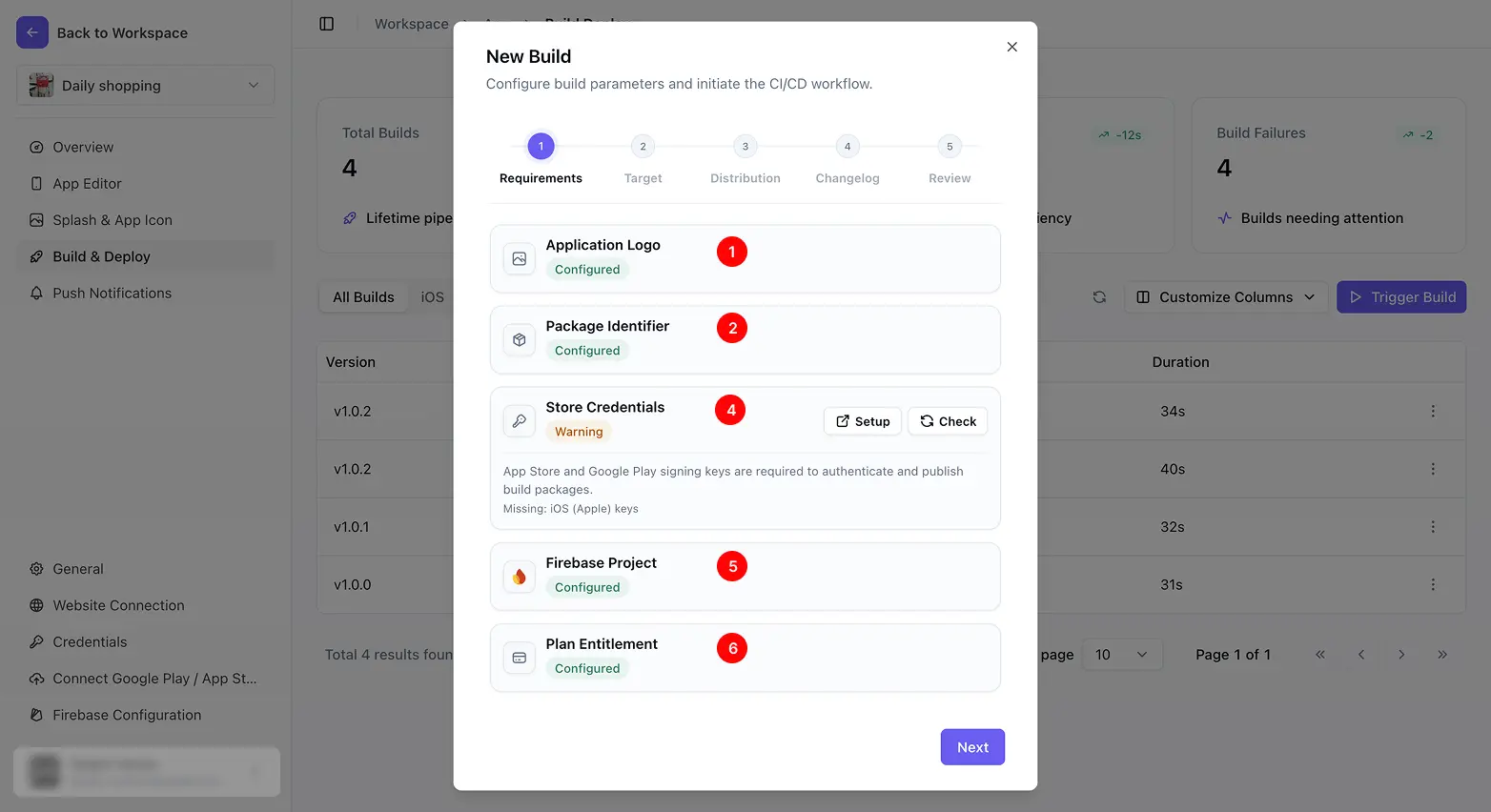
Each item in the wizard has its own Setup link straight to where you’d fix it, and a Check button to refresh its status without leaving the wizard.

FAQ

Publishing Setup
Set your app’s name, slug, and package ID
Was this page helpful?
On this page
The two earlier gatesThe five things checked inside the build wizardFAQDo I need both iOS and Android credentials before I can build at all?+Why does Firebase matter if I’m not using push notifications?+