
Your app doesn’t have content of its own – it pulls everything from the website you connect here. Products, pages, structure, all of it. That makes this the single most important setup step for a new app, and it’s the one thing the App Editor won’t open without. It’s also the place to come back to when an app that was working suddenly isn’t, because a connection can break from the website side without anything changing in AppNatively.
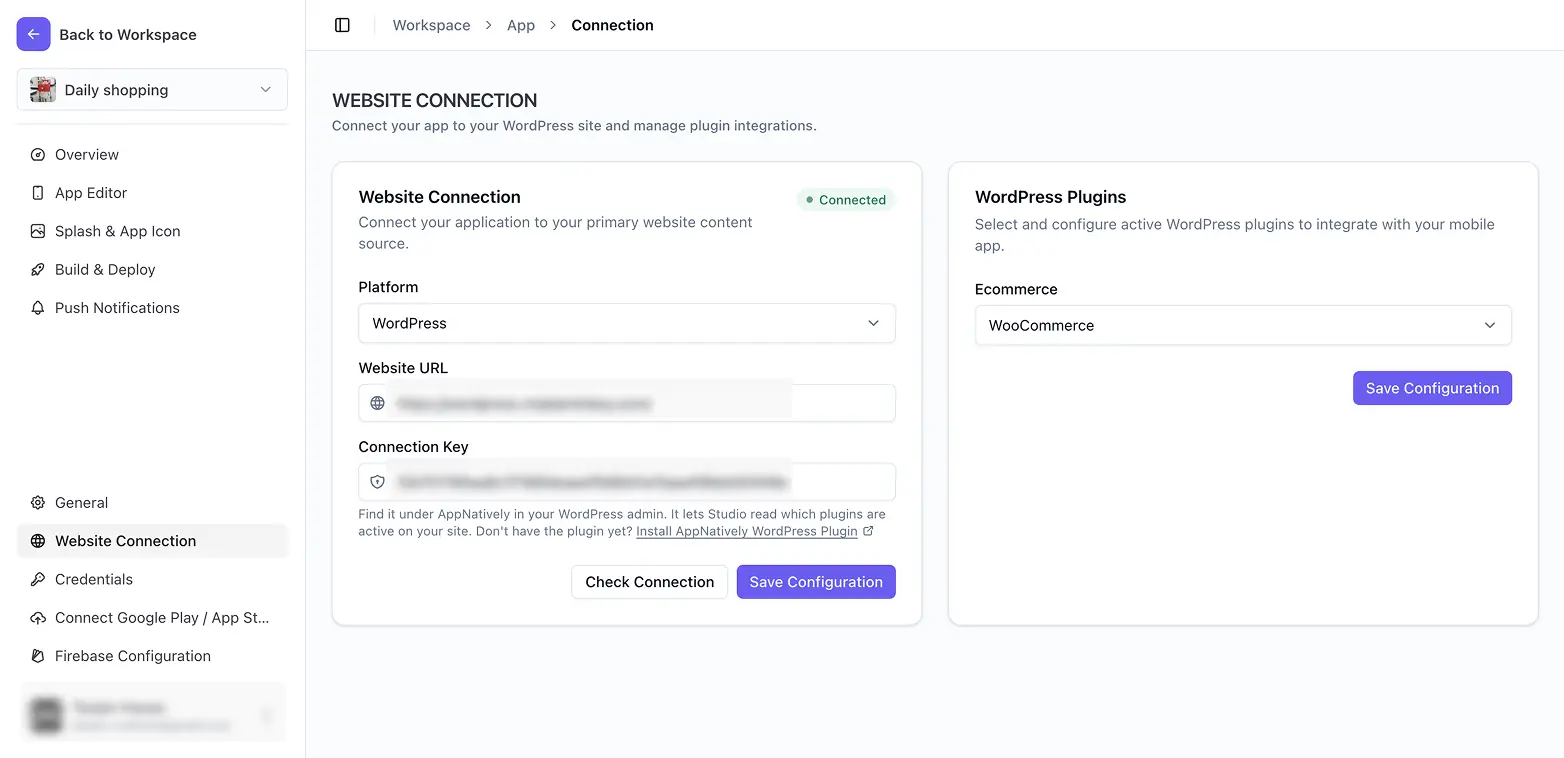
What Website Connection covers
Connect your website to AppNatively is the main event: enter your site details, test it with Check Connection, and save. Your site also needs one small plugin installed first, which is its own article. Once you’re connected, a WordPress Plugins card appears where you tell AppNatively which of your active plugins should power each part of your app – WooCommerce for products, for example.
The last two articles are for when things go wrong: the full-screen “Website Not Connected” message that blocks the editor, and a connection that used to work and now doesn’t.
Before you start
You’ll need an app to connect a website to – see Create your first app if you haven’t made one yet.